







Table of Contents (FAQ)
These are all categorized and hyperlinked (you can click on them for easy access).

Getting Started
- How do I access the website platform?
- How is the website structured?
- What Are The Common Sections?
- How can I use the Search Bar?

Info and Settings
- Micropayments (and how you can be paid to post)
- Flagging (inappropriate content, posting standards, and the 'strike-policy')
- Privacy (what you can do to hide/show certain content online)

User Features
- How can I access the E-Editions?
- Where can I find historical articles/issues/snippets?
- What are the Email Newsletters?
- Comics/Cartoons/Games (what we offer and their update schedule)
- Elections (our coverage of electoral races)

Community Features
- Buy & Sell (and how users can either find items/make money selling them)
- The Community Calendar (and how it can be used to promote local events)
- Local Links (and how you can share hyperlinks to useful websites for those in your community)
- Obituaries (and how you can run an obituary online/in print)

Social Features
- How can I invite friends/others to post?
- News Posting (how you can create articles/columns for our site and get paid for them)
- The Friends Feed (using our local, non-tracked social media tool)
- The Groups Feed (creating categorized boards for specific posts)
- The Neighbors Feed (sharing posts directly to local areas)

Advertising
- Local Advertising (and how to run an ad with our website/newsletters/print publication)
- Statewide Advertising (and how to run an ad in 20+ possible publications across the state)
- How can I pay my Advertising bill online?
- How can I purchase a Legal Ad (for Online and Print)?
Overview & Quick Introduction
We strive to serve our readers as a multimedia company, offering:
- Print,
- Magazines,
- E-editions,
- Newsletters,
- Social Media Tools,
- and a 24/7 website on desktop/smartphone (that updates as frequently as possible).
How do I access the website platform?
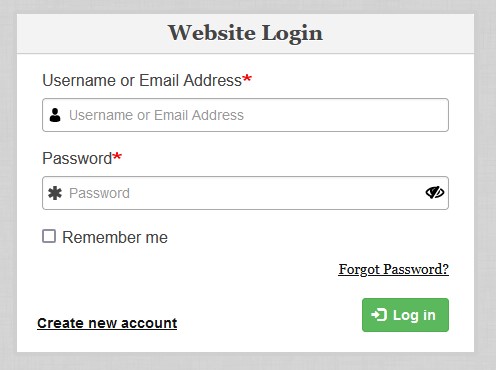
Logging in to the website is simple: You simply navigate to the login page.
The 'Log-In' Button is also always in the top-left corner of the site (if you are not already logged in).
Your sign in with your ID and password (which will be either automatically generated or custom-set by you), giving you access to additional features at your disposal, such as user posting/social media tools/local etc.
Existing Print Subscriber Online Access Instructions
NOTE: Every existing print subscriber has an existing account to log in with.
Their last name and the numbers of their address serve as the user ID.
The password is the subscribers 5-digit zip code.
EXAMPLE:
John Doe living at 123 Main Street would have a user ID of doe123.
John's Password would be his zip code.
No caps are used in the user ID name.
Connecting Your Social Media Account
We have options to Register or Login with an existing Google, Facebook or Apple account:

Doing this will have an account created on our website for you (with whatever email that service has on file).
If you ALREADY have an existing account with a subscription (either Print or Digital) on our website,
you should ensure that it is properly linked by ensuring that you are using the SAME EMAIL that the Google/Facebook/Apple accounts use.
You can check this by going to your account settings:
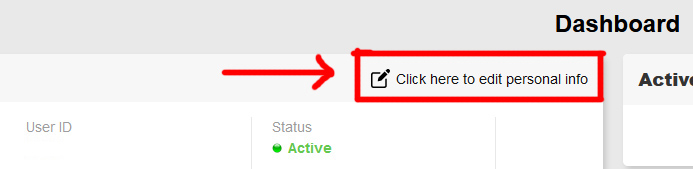
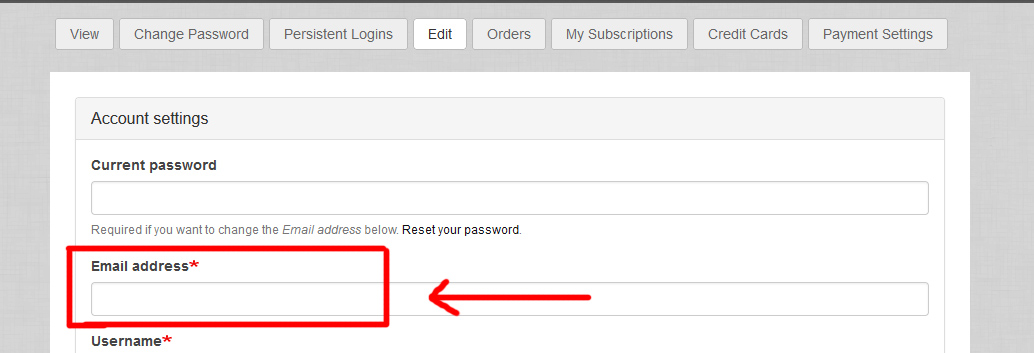
The Email Address for your account should be the SAME as the one your social media account uses.
If you ACCIDENTLY created a new account with a Social Media login option that has a different email (that is NOT the same email with an existing account with a subscription) you have the option to CANCEL the second account, which will allow you pair your social media login email to an existing account (likely one with an existing subscription).
You can do this with the 'Cancel Account' option at the bottom of this page:
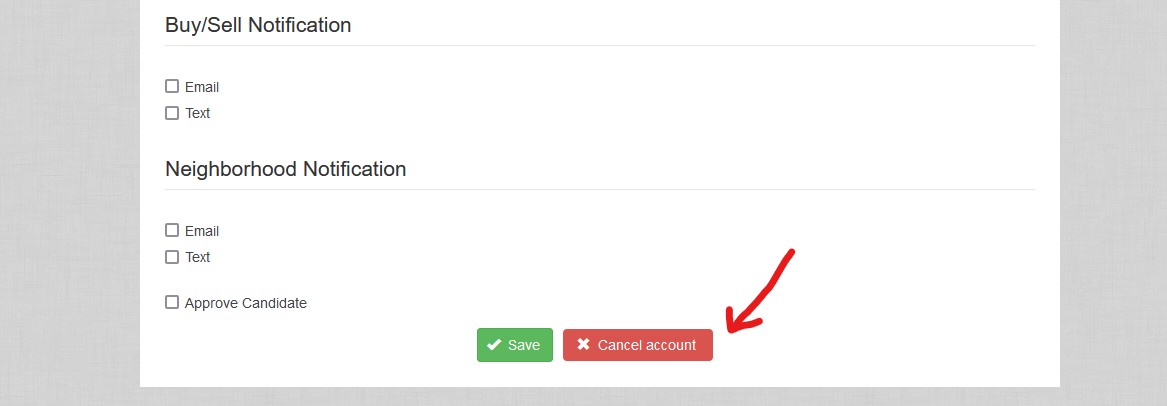
IMPORTANT NOTE:
Do NOT cancel an account with an ACTIVE subscription.
This instruction is ONLY if you accidently created an account on our system with a Social Media Login that does NOT share the same email you want to use for an existing account WITH a subscription (so that they can be paired).
If you have any questions about this process, please contact us directly using the CONTACT US page on our website menu.
We will gladly assist you with this process to AVOID any potential for an accidentally deleted account.
How is the website structured?
The structure of the website is simple. There are basically two parts: articles and article lists.
Articles are comprised of a photo, a headline and the text body.

Article Lists are the filters/categories for these articles (known as Sections).
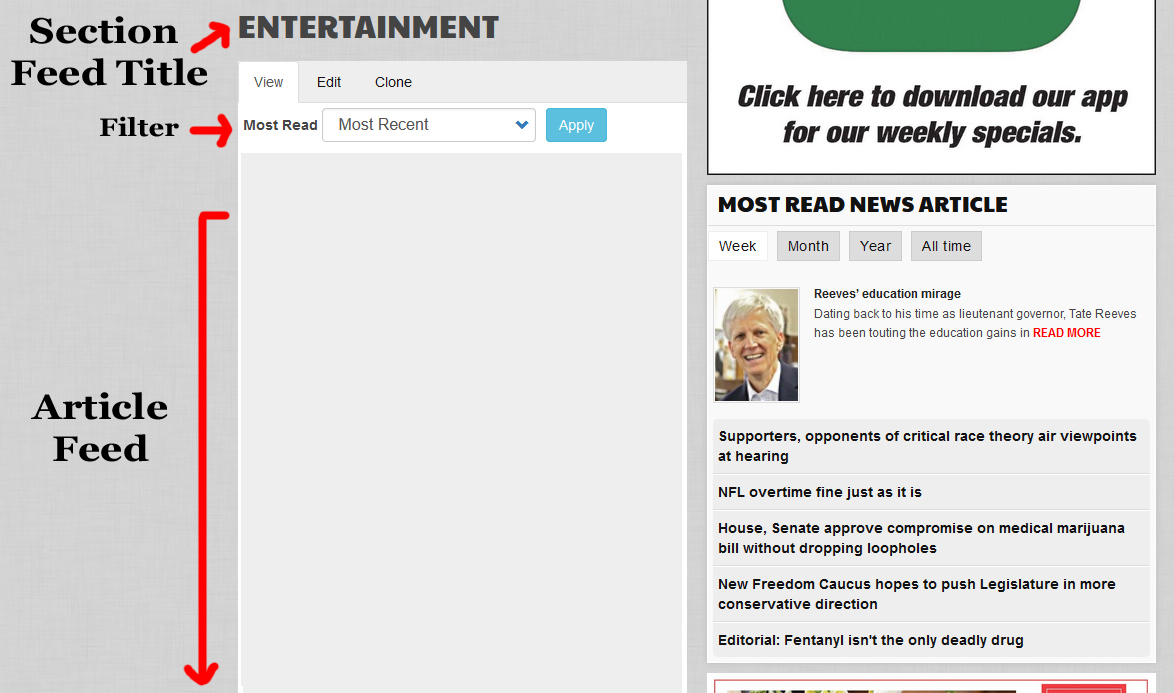
We have created many standard sections that we categorize our articles under, such as Entertainment, Obits, Opinion, Sports, etc.
You can view these options under the dropdown menu for your site.
Explore! You might find new topics to follow, giving you updates (at either a local, state-wide, or national level).
What Are The Common Sections?
Click on the section title below to navigate to their corresponding feed page.
- Anniversaries
- Associated Press
- Births
- Cartoons
- Columns
- Comics
- Crime
- Documents
- Editorials
- Entertainment
- Features
- International
- Letters
- Lifestyles
- Local News
- Local Sports
- My Two Cents
- National
- Obituaries
- Podcasts
- Politics
- Press Releases
- Public Notices
- Schools
- Slideshows
- Social
- State
- State Sports
- Top Stories
- Videos
- Weddings/Engagements
How can I use the search bar?
We have developed a fairly robust solution for filtering content on our website.
The Search Bar exists on the top-right corner of your display, providing easy access to precise keyword filtration.

This tool searches through our entire website database to locate articles that match your unique search criteria.
EXAMPLE:
You are searching for an article about the Governor.
Our search functionality will comb through all of our articles to find anything that contains the term 'Governor'
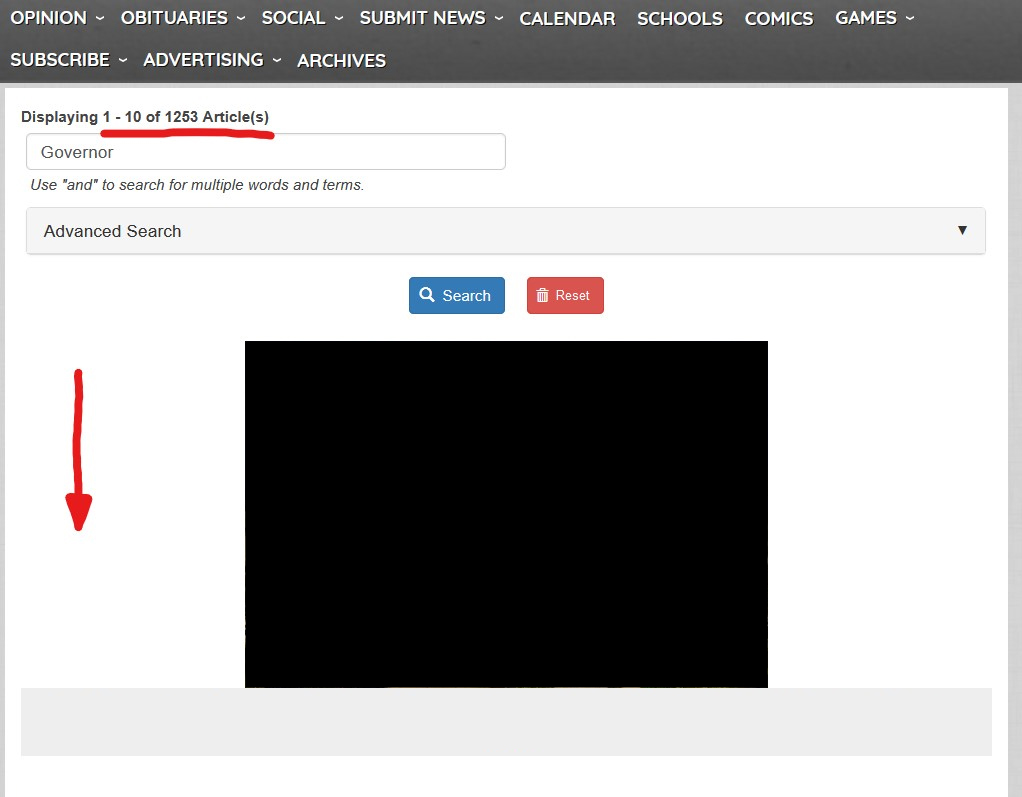
This search tool will examine titles, body text, bylines and captions to locate your specified terms, highlighting whatever terms you have designated:

As you can see, the search term is listed as BOLD text. This ensures that your term is easily found within your results.
*NOTE: We recommend that you always check for spelling, as that can significantly alter your results.
Our search tool is so robust that you also have the ability to search using "advanced" methods, allowing for even greater precision.
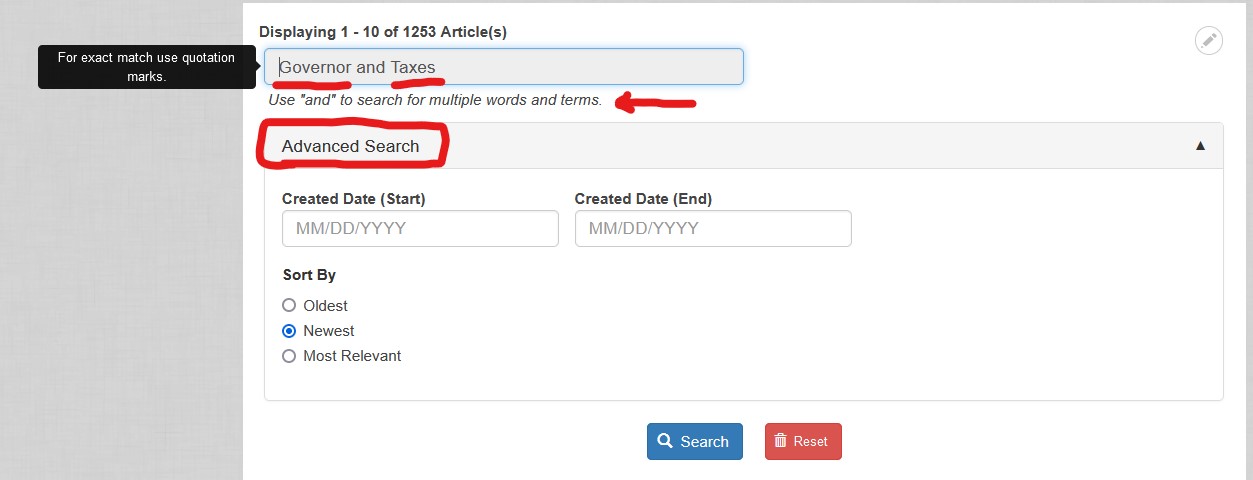
1. Our search bar is context sensitive, allowing for words to be 'strung' together.
EXAMPLE:
To search for an article about the Governor and Taxes, you can type "Governor and Taxes".
By using the word 'and' between keywords, your search will only show results including BOTH terms.
You also have the ability to search for 'Author' and 'Subject' terms in a single string:
EXAMPLE:
To search for an article from Wyatt Emmerich about the Budget, you can type "Wyatt Emmerich and Budget".
By using the word 'and' between keywords, your search will only show results including BOTH terms.
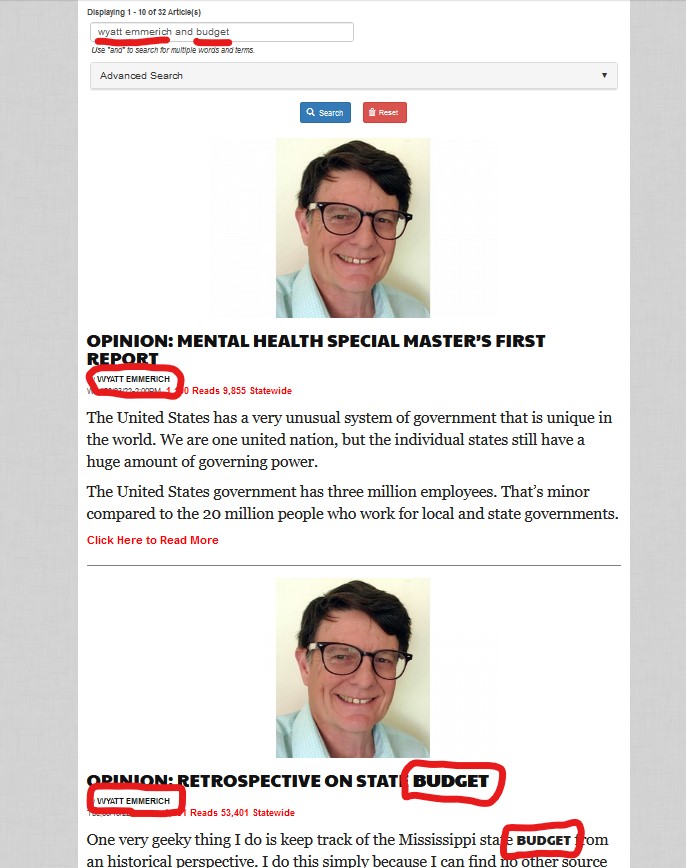
2. We allow for 'Exact Match' searches, which will only show results that have the text used in quotations.
EXAMPLE:
To search for an article about Governor Tate Reeves, you can type "Governor Tate Reeves".
The quote symbols have to be present for it act as an exact match.
3. There are date-range options, allowing you to set the specified timeframe you would like your search parameters to meet.
4. A sorting-option exists, giving you the ability to set how your results display (Most Relevant, Recent or Oldest).
What is the User Dashboard?
Our account system has been constructed to provide ease-of-access to various features, including:
account information, subscription status, newsletter/notification settings, etc.
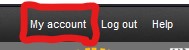
It can be easily accessed by clicking on 'My Account' on the top-left corner of your display.
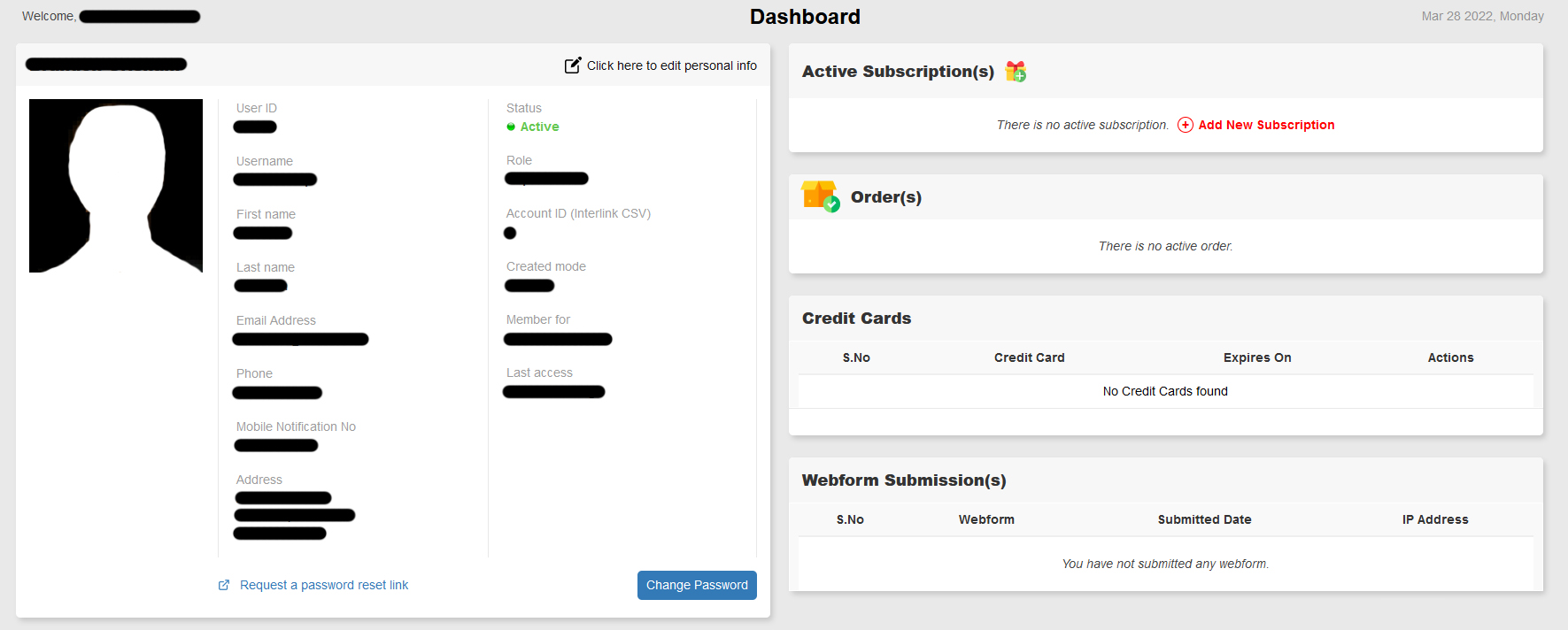
The user dashboard will allow you to see your account's personal information.
This information is PRIVATE, and accessible only by you.
We take great care in ensuring that all of your personal/private data is stored securely.
You are given options to update your account's details, including:
- Phone number
- Email Address
- Mailing Address
- Password
- Etc.
This dashboard also gives you immediate information on your subscription to our publication:
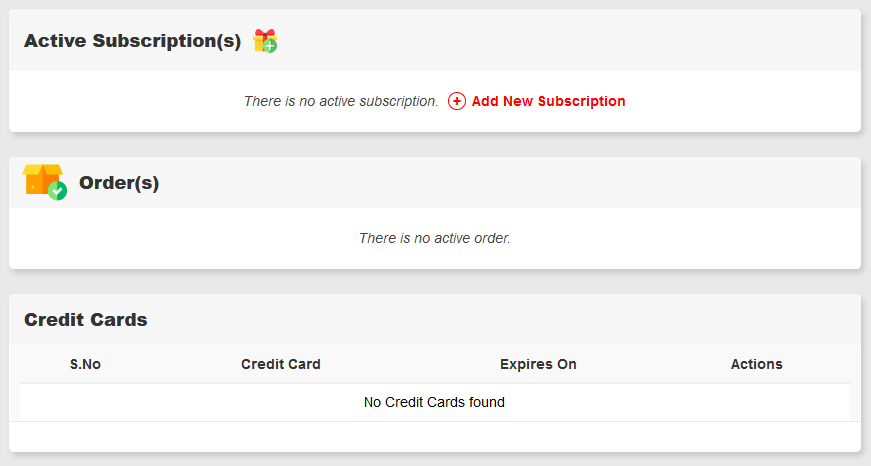
You have the ability to adjust your subscription, view your recent orders, and store payment methods (for future use).
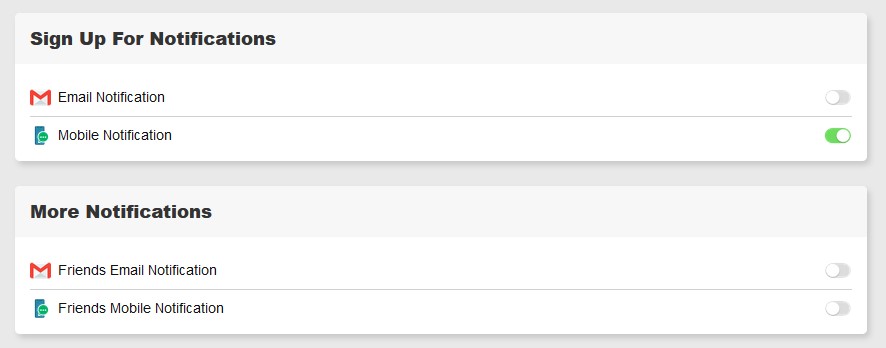
Our publication also provides options for signing up for various email/phone notifications.
These notifications pertain to our publication's newsfeed, your Friends feed, Neighborhood posts and more.
The options are listed as simple toggles that can be either enabled or disabled.
Your dashboard will also allow you to see your recent social posts, giving you quick-access to your posting dashboard.
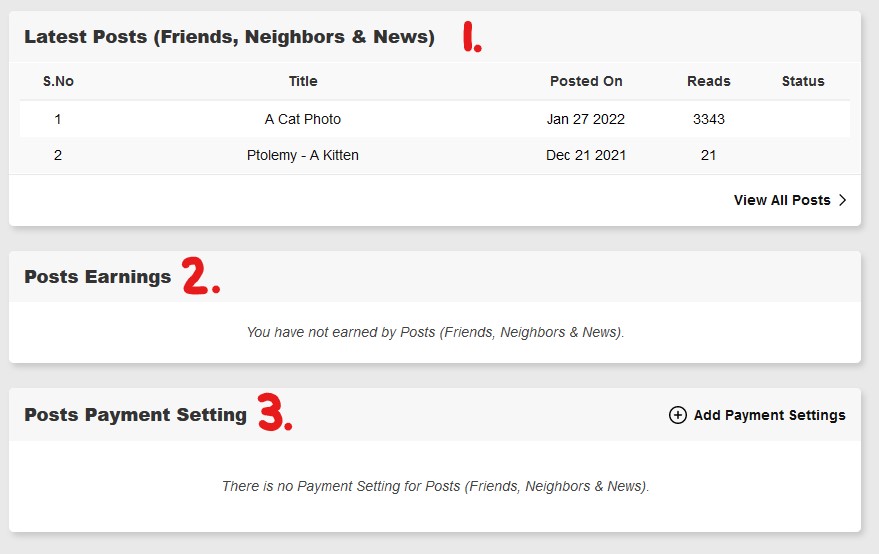
Our website believes in fair payment for user-generated content, so we share revenue for garnered traffic.
If you post on our site (and add your payment settings), you will earn money for your posts.
To learn more about this feature, read the User Posting FAQ page here.
How can I access the E-Editions?
Alongside our print publications, we also provide a digital version of every published paper/magazine/special section for our readers to browse at their leisure.
You can easily access the latest e-edition (or view the main listing page) by clicking on the sidebar item, found on both mobile and desktop browsers.
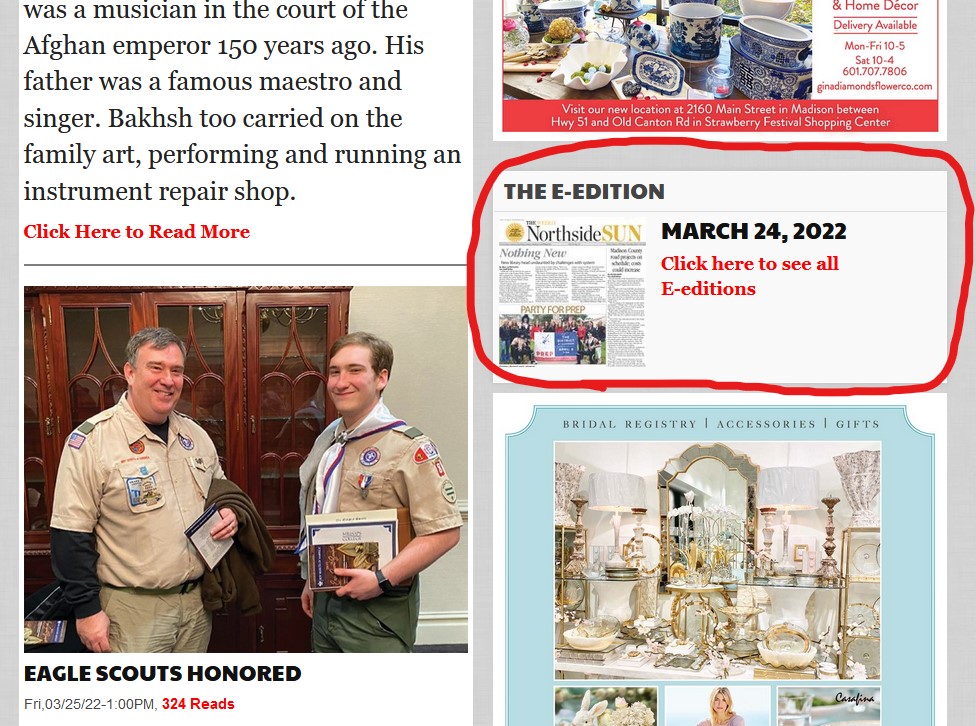
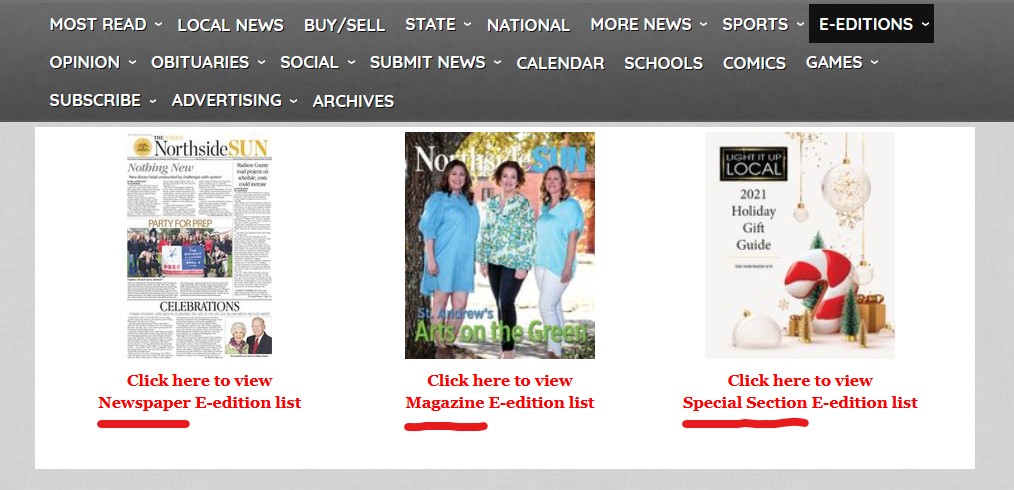
To provide ease of access, we have seperated our e-editions into various categories:
Newspapers, Magazines and Special Sections
Simply click to browse the full list for the corresponding category.
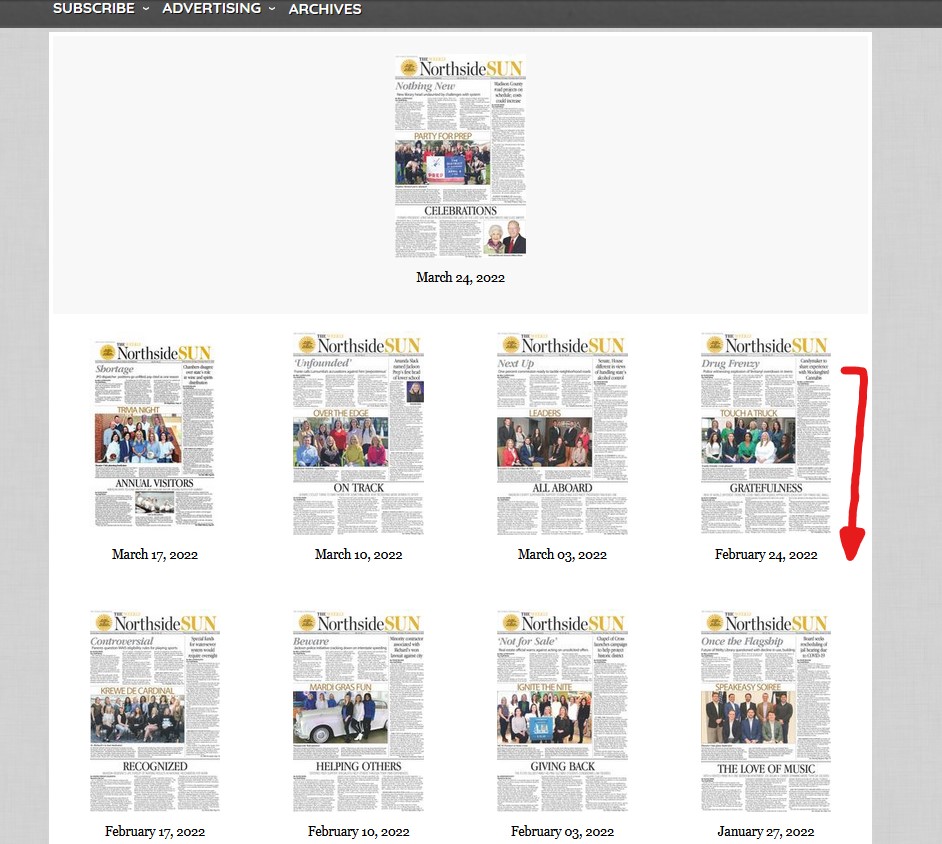
Our lists are sorted by most-recent, ensuring that the latest e-edition is always located at the top.
Each of our pages store the last thirty publications (for each category).
To browse the listed e-edition, simply click on the thumbnail.
By clicking on an e-edition, you are brought to a page that hosts the entire published item.
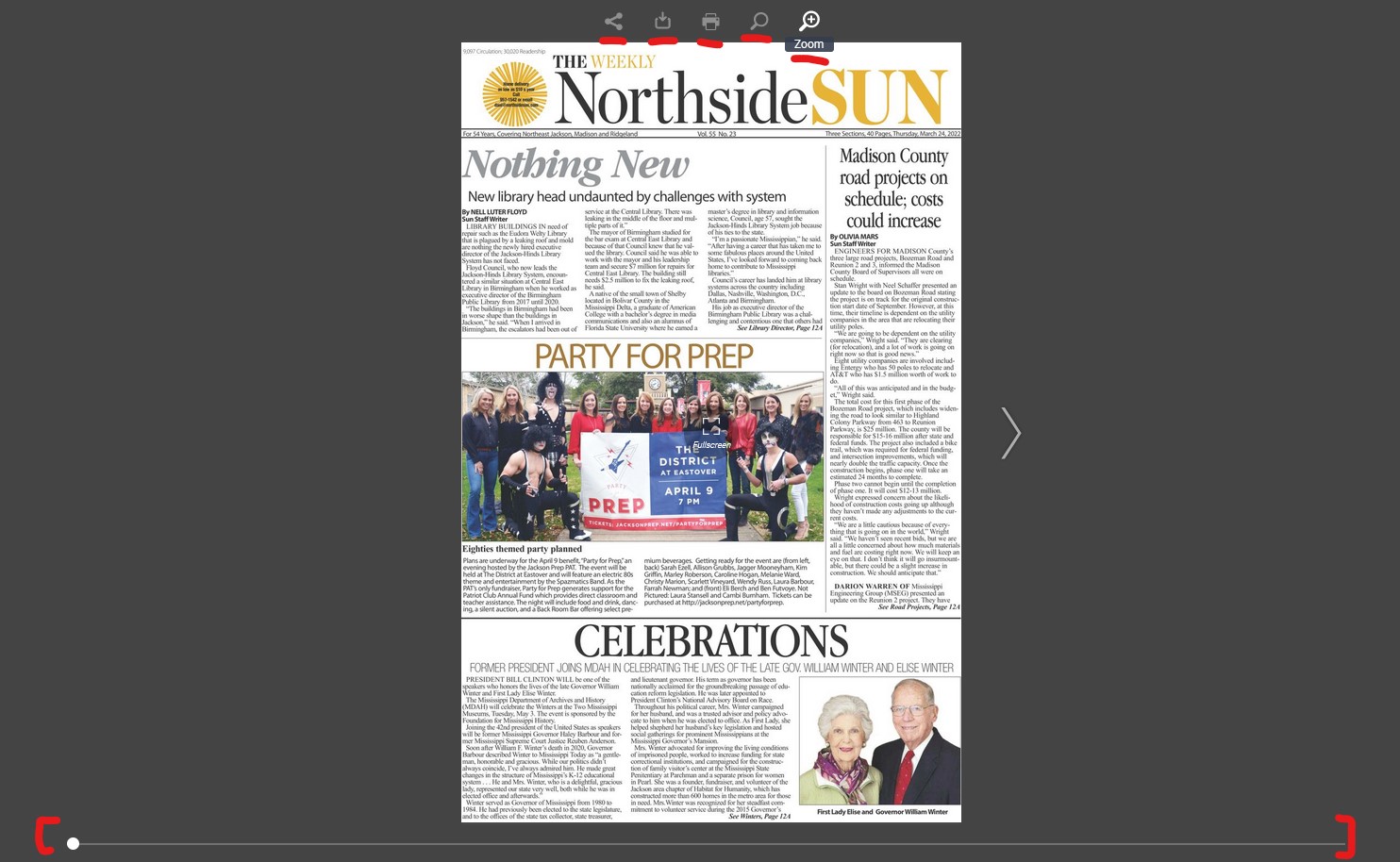
This e-edition contains various useful options, including:
- navigation tools (swipe and arrow movement between pages),
- link sharing
- PDF downloads
- printing options
- zoom capabilities
Please explore the various tools to get the most out of our published e-editions.
Where can I find historical
articles/issues?
For any and all e-editions that no-longer occupy the current E-Edition categories, we have organized a dedicated archive (working with Ancestry and Newspapers.com to accomplish this task).
You can easily access the publication archives by clicking the dedicated menu option:

This will take you to a listing page featuring every historical element that exists for our publication.
If you are a logged-in, subscribed user when you click the link, you are given free access to the last two years of archived material.
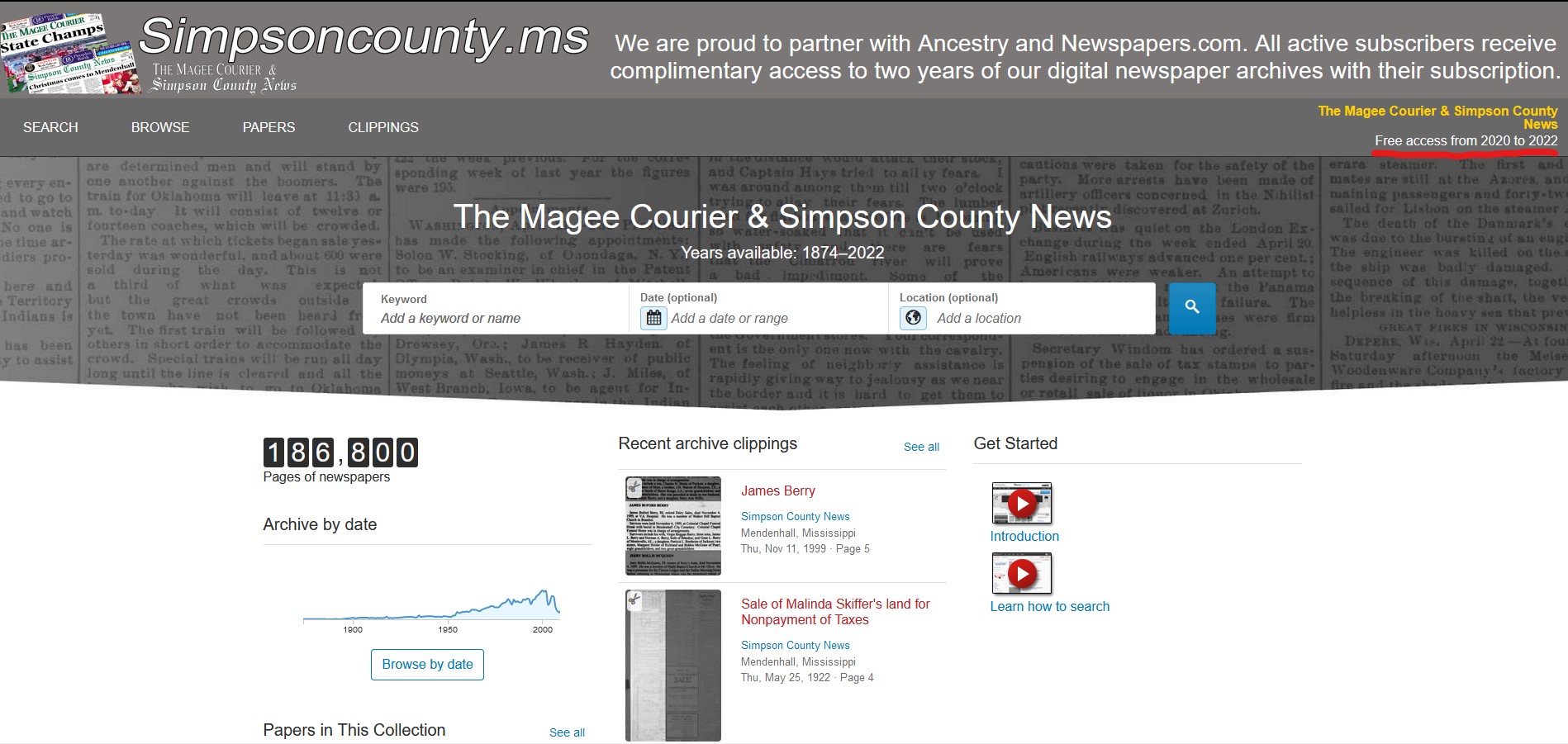
Any previous material would require a dedicated Newspapers.com subscription.
What are the Email Newsletters?
Some of our readers prefer receiving recaps of the news directly within their email inbox.
We developed Email Newsletters to allow for this functionality, which bundle various stories together into a consistent mailing schedule.
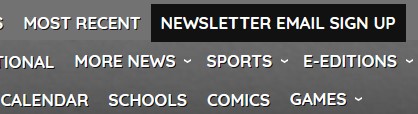
You can easily sign up for emailed newsletters by clicking on the corresponding menu option.
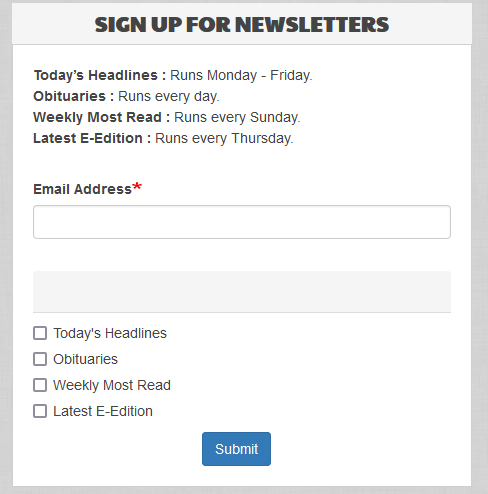
The sign-up page lists our available options, along with the schedule information for each item.
You can easily sign up by attaching your email address and selecting your preferred newsletters.
We ensure that users have easy methods of unsubscribing should they decide to no-longer receive our emails.
You can always find the 'Unsubscribe' option at the bottom of every email.
Users can also re-subscribe at any point, adjusting their subscription through simple toggles on their User Dashboard.
How can I pay my Advertising bill online?
Anyone that advertises with our publication is given the ability to pay their advertising bill online (through our website).
The option can be accessed through the "Advertising" dropdown on the website menu.
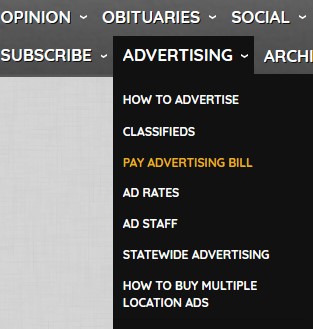
The system is set-up to process everything through PayPal, which allows for multiple payment types.
You simply set your name, email, contact information and the amount you wish to pay in the fields.
Our advertising staff will then apply your payment toward your Advertisement account.
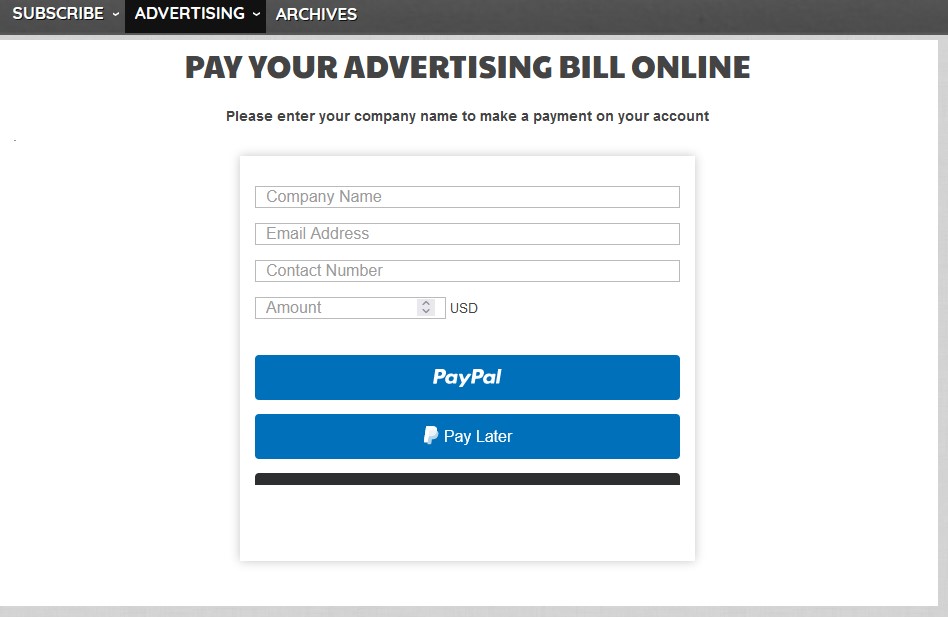
We provide clear-cut receipts/invoices for all services rendered. A confirmation email will be sent to you via PayPal.
What is the Community Calendar?
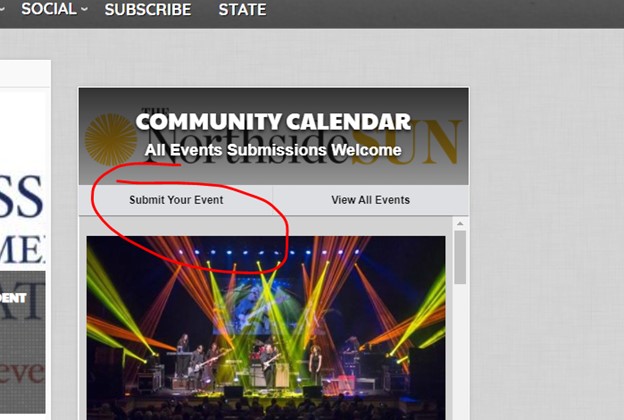
Our Community Calendar is meant to serve as a comprehensive listing of events for the entire community.
Access to the listings exist as a menu item (Calendar) as well as a side-bar item.
Logged-in users have the ability to add new events to the local community calendar.
You can easily start the event creation process by clicking “Submit Your Event”.
If you know of a local gathering, you should post to the community calendar (and raise awareness of the event).
You can add an Image or PDF to an event. You can also add a street address and it will display the location of the event in a Google Maps image.
There are nice graphical presentations for all upcoming community events.
What is the Friends Feed?
This functionality serves as a local social media, giving readers the ability to friend each-other, create posts and notify each other whenever their feeds are updated.

You can access the Friends functionality by clicking the option on the menu.
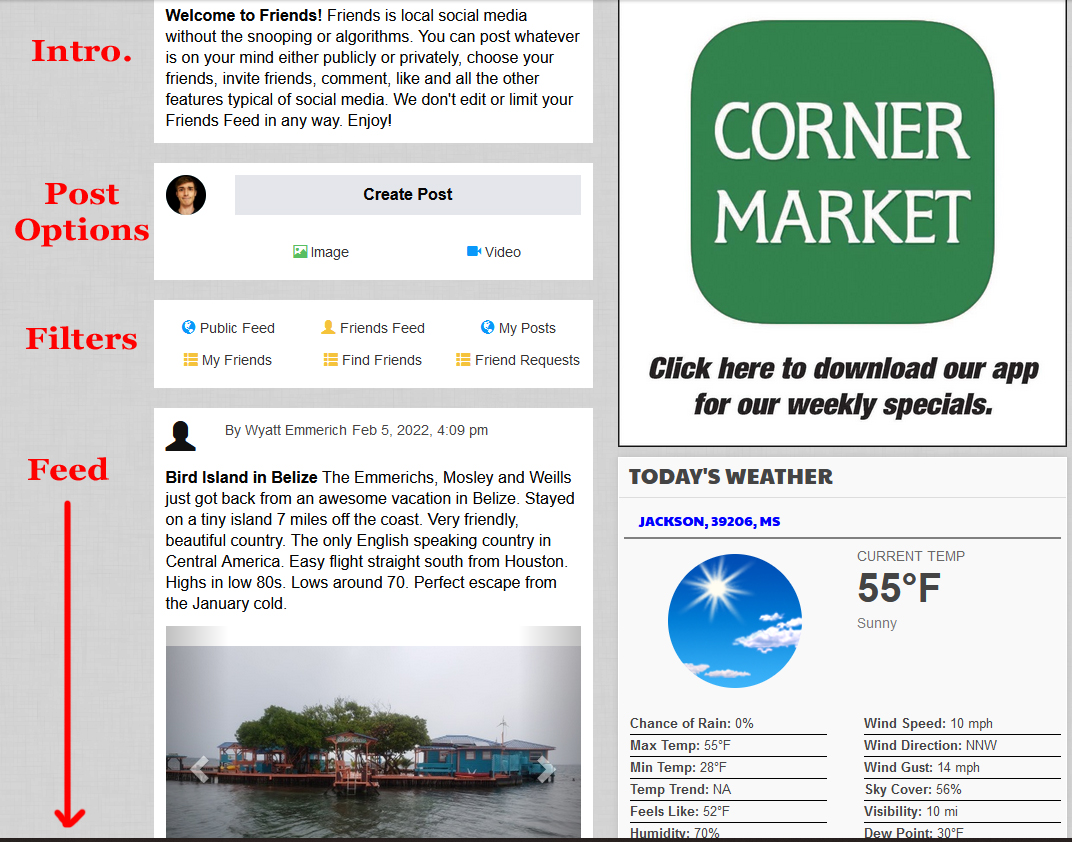
The page is structured in a straightforward manner:
- The introduction explains the feature to new users.
- The post options allow readers to easily start a new post, using either text/photos/videos.
- The filters give users the ability to sort their feed however they like (Public Feed/Friends Feed/Personal Posts). The second set of options allows users to see their friend list, search for friends and accept friend requests.
- The feed itself functions in the same way a news section feed page would operate (Like Most Read/Top Stories/etc.) There is a title/byline/body text and images. If a post is too long, it can be viewed as a dedicated page (just like an article detail page).

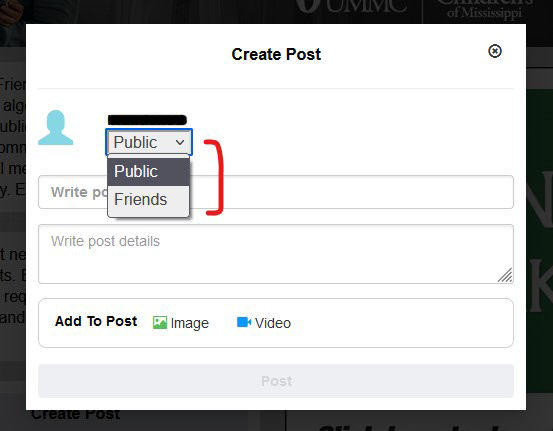
When a user creates a Friends post, they are given a pop-up form. They have the opportunity to set their post a public or private (friends only). All of the options are labeled to be self-explanatory.
What is the Neighbors Feed?
We created a feature to transform public feeds into categorized, local neighborhoods within your community.

You can access the Neighbors functionality by clicking the option on the menu.
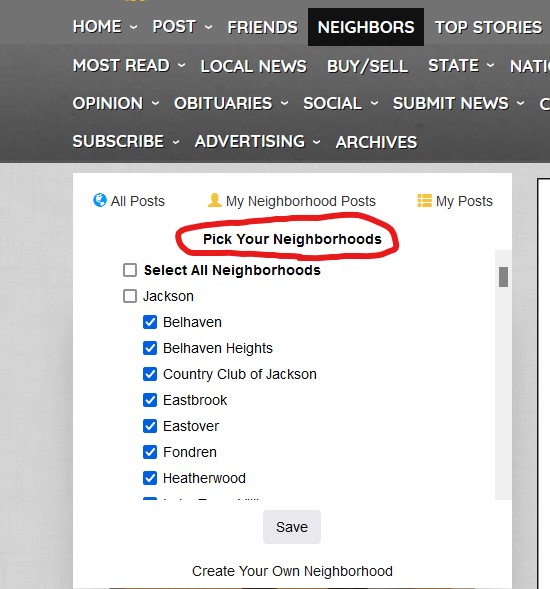
This functionality works exactly like Friends posting, however the focus for all posts is centered around local communities. Users have the ability to set the local area that a post would apply.
The filter options give users the ability to set which community feeds they would like to see (either a collection or individual neighborhoods).
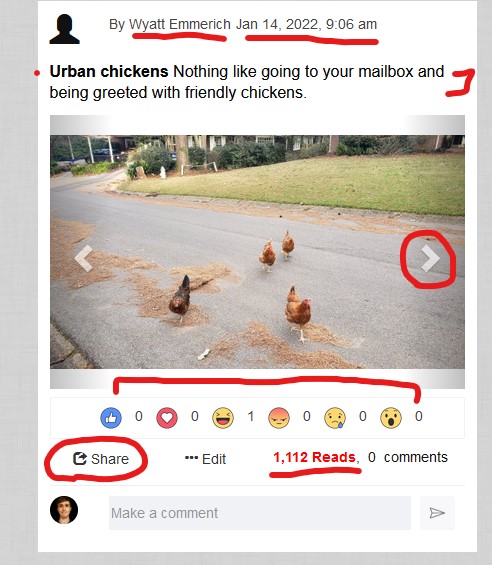
Attached with every post comes reaction icons, which gives readers the chance to set how they feel about a post. There are also ‘share’ options, a read count and a comment section.
How can I invite friends/others to post?
All of our social tools give users the ability to invite others to join in.
You can access these options right above the main feed for each tool.

You have the ability to invite new users via an email address or through a text message.
Invited users are given the ability to either log in with an existing account or register as a new user.
Where can users Buy & Sell items?
We created a system that allows readers to Buy and Sell items locally.
You access the option by clicking on the menu item.
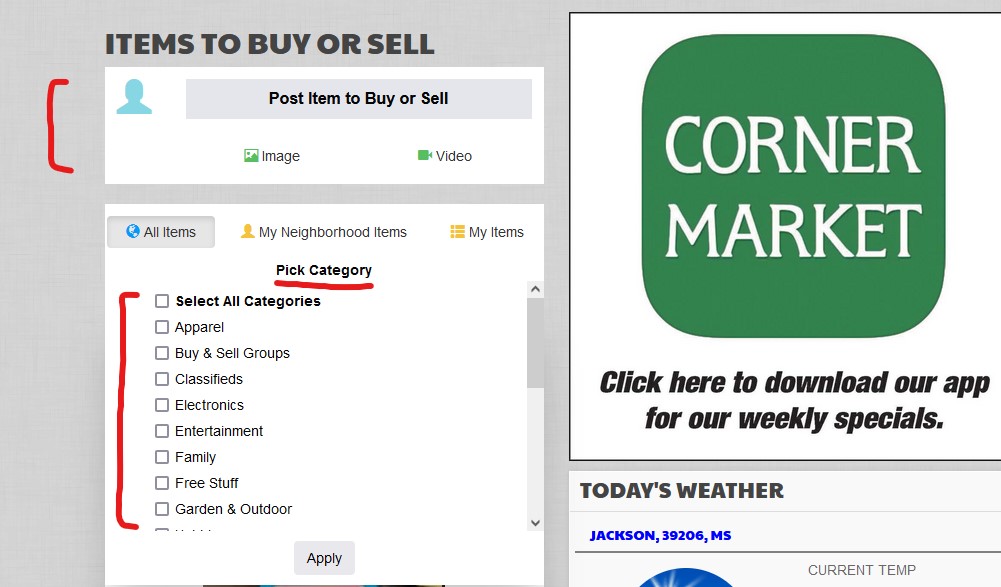
It is built on the same system as Friends posts, yet it contains several key differences:
1. It is set up to focus on ITEMS, not posts. You can see this in effect across the options.
2. You have the option to filter by category, as well as selecting a specific neighborhood to place the item for sale.
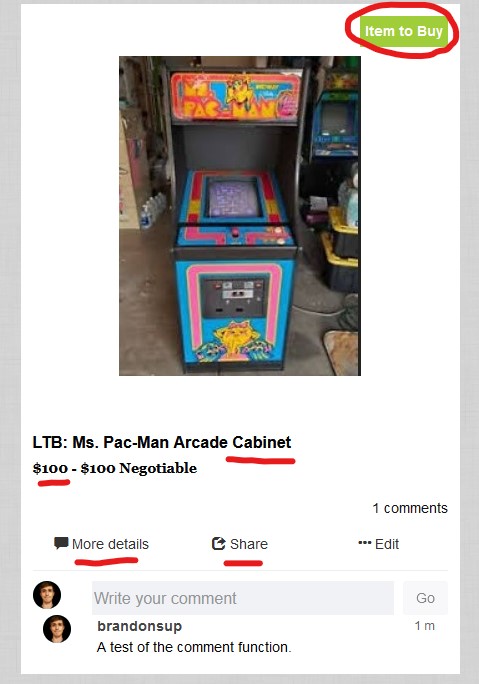
3. You can post either an item to sell, or a post that requests an item to buy.
4. The post requires a price (and if the cost is negotiable or not).
5. The feed only lists the title/price/picture. To see the full post, users need to click the ‘More Details’ option, which takes them to the post’s complete page.
6. These posts do not contain ‘Reaction’ options.
When creating an item, you are taken to a unique item-creation page.
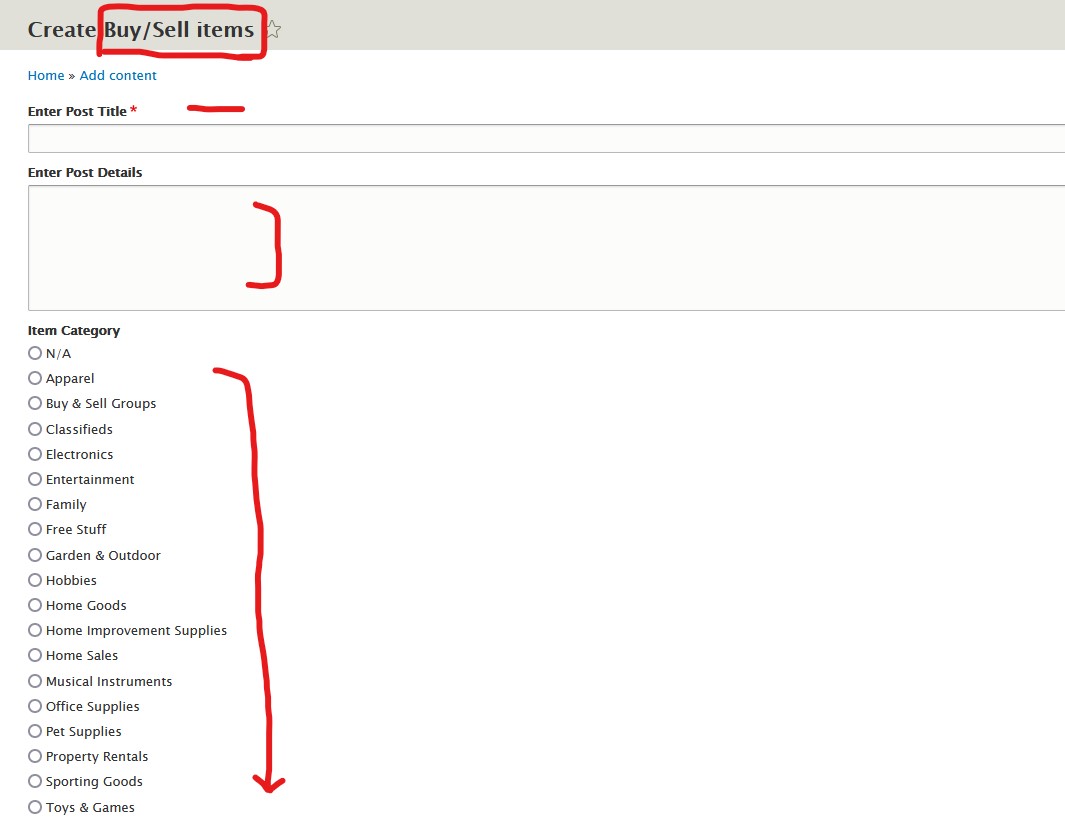
We designed all of the elements to be self-explanatory.
What is the Personal Public Profile?
Users needed a place to express themselves, so we created the Personal Public Profile.
While it shares some similarities to the User Dashboard, this page is available for others to see (whereas the User Dashboard is private account information).
Users can view your profile by clicking on the option (above every post).
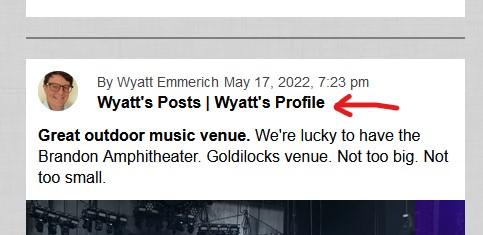
This is a public profile that is tied to your existing account. It collects all your posts (Friends, Neighbors, Buy/Sell, etc.) and displays them on a single page.
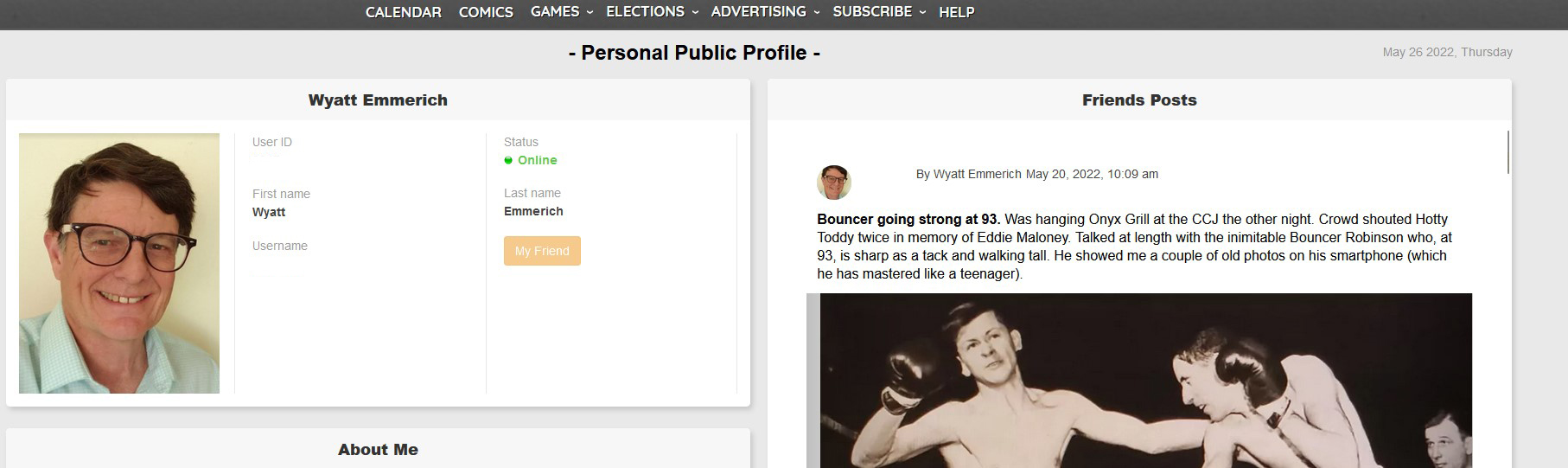
It also displays a Friends List, which gives you ability to compare friends. You can send friend requests to familiar users or click on their name to view their unique public profiles.
You can edit your profile in various ways, adding a ton of ways to make your profile your own.
Be sure to customize and share whatever you like!
What is the News Post Dashboard?

The News Post Dashboard serves as the main portal for your submitted News Posts.
It gives easy access to your posts, whether any of your posts are under review/have been approved and gives full access to your payment settings.
To view your News Post Dashboard, click here!
What are Micropayments (and how can I be paid to post)?
If you create content, we want to pay you for it. This functions exactly like our setup towards our news staff.
If you think that your content post is worth sharing, simply try sharing it through our network.
We love having members of the community share news/content/opinion columns/etc.
We're willing to share whatever we think the community would be interested in. Everything from local reviews, cooking recipes, local government/school updates, etc.
It could be anything, regardless of if you consider it 'newsworthy' or not. If you think that it's important and you want people to know about it, make a post on any of the social platforms (Friends, Neighbors, Groups, Buy/Sell).
Payment Settings
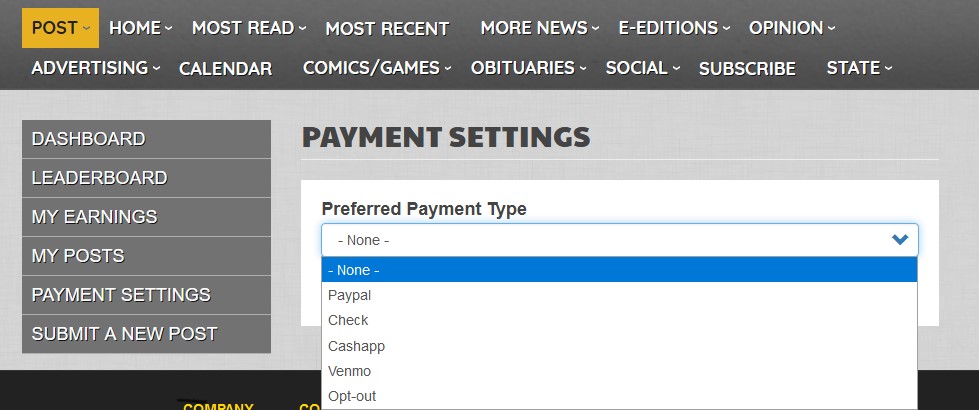
Posting content will always be free. If your post generates reads, we give an incentive by paying you for popular content.
In order to be paid for your work, you'll need to update your payment settings under the User Posting options (Post menu dropdown).
These payment settings are only to send you money that you earn from your posts. We do not utilize your financial information for any other purpose.
How Can I Flag Inappropriate Content?
Users have the ability to flag user posts as inappropriate (for spam, offensive content, etc).
One can do so by clicking on the Flag icon at the bottom of a post (and confirming that they intend to flag the post).
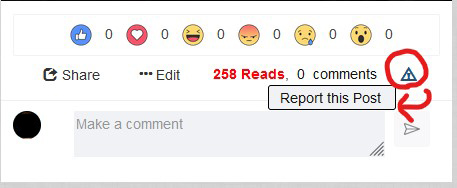
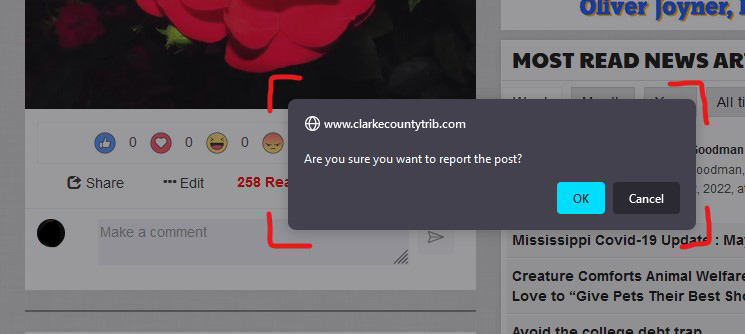
If any post receives multiple strikes (from several users), the post will automatically be pulled from public display for review.
A moderator will review the flagged content and take action against the account, either reinstating the post, giving the posting user a strke or banning the account entirely.
Strike and Ban Structure (for users and Groups)
Site moderators may choose to strike a posting profile for inappropriate content.
These strikes accumulate and result in automatic actions toward an account:- Three Posts with strikes: 24 hour suspension of posting and a warning email.
- Four Posts with strikes: 72 hour suspension of posting and a warning email.
- Five Posts with strikes : Week suspension of posting and a final warning .
If a user has posted over five items that have resulted in strikes on a profile, the user will be banned from posting any social content.
What are my Privacy Settings?
You have the ability to change who can view your posted content.
When posting to Friends, simply set the privacy option when creating a post:
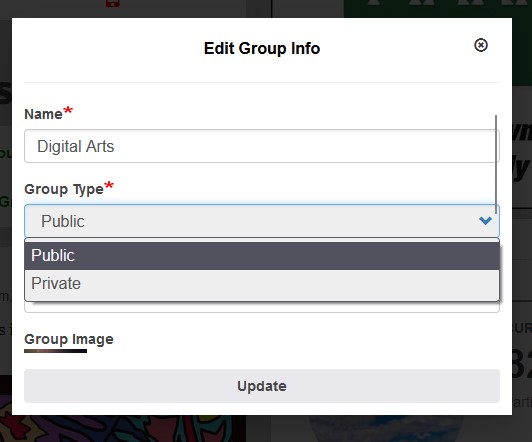
On Groups, you can configure your own personal group to be a private/invite-only structure:
Local Links (and how you can share hyperlinks to useful websites for those in your community)
We wanted to offer users the ability to share links to useful pages that relate to the local community. To allow for that, we created Local Links.
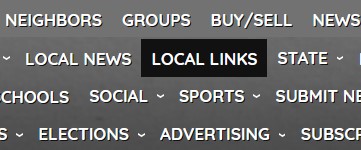
You can access the page by clicking on the dedicated menu option:
This page offers various categories of link types (and you can add to any number of them):
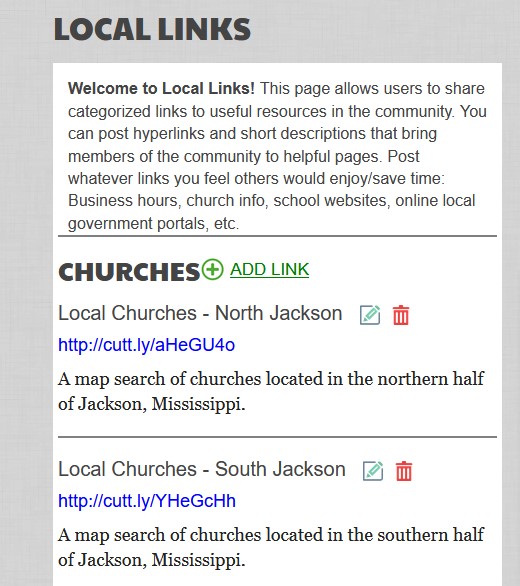
Categories include:
- Churches
- Government
- Business
- Schools
- Civic
- Misc
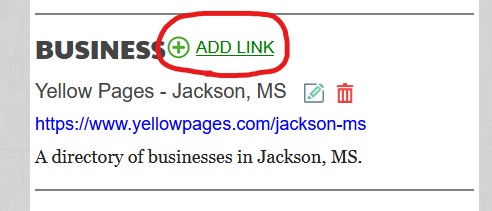
You can add a link by clicking on the "Add Link" option next to a category (it does not need to be for the same category, as you have the option to adjust your link's classification when adding it).
Adding a link is a straightforward process of various fields:
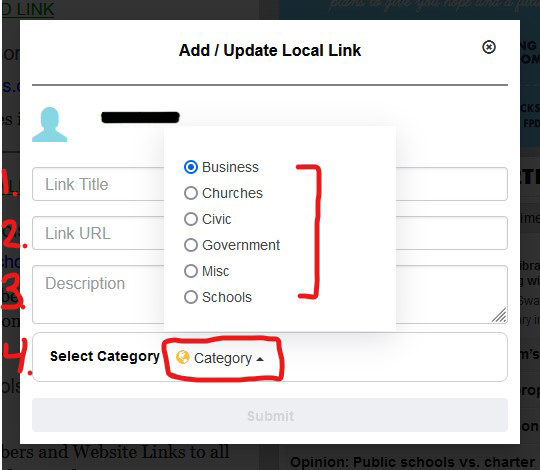
1. The Link Title is what you wish to name the link in question
2. The Link URL is the link that you are trying to share
3. The Description is a simple explanation for what your link is. It is optional.
4. The Category is the section you would like to classify your link under. Pick whatever is most-relevant to your link.
After your link is live, you have the ability to either EDIT or DELETE your shared link.
These icons will exist to the right-side of your link on the page.
The Groups Feed (creating categorized boards for specific posts)
We created a feature to allow for posts of a similar topic/category to be grouped together.
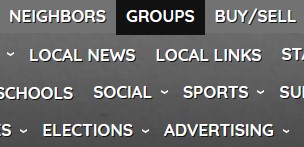
You can access the Groups functionality by clicking the option on the menu.
This functionality works exactly like Friends posting, however the focus for all of the posts to be centered around a similar topic.
The main feed page will showcase all recent, public group posts.
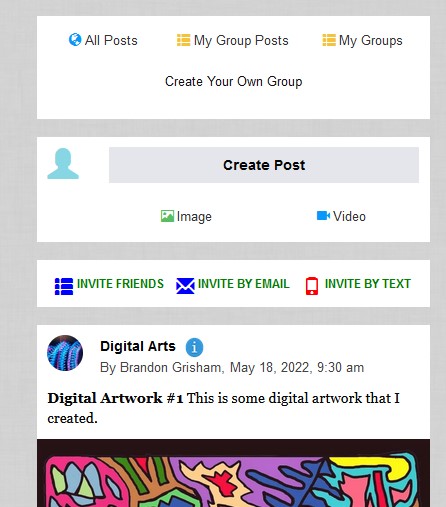
Instead of posts being centered on an individual user (like Friends), the main aspect of Group posts is that they are tied to a specific group:
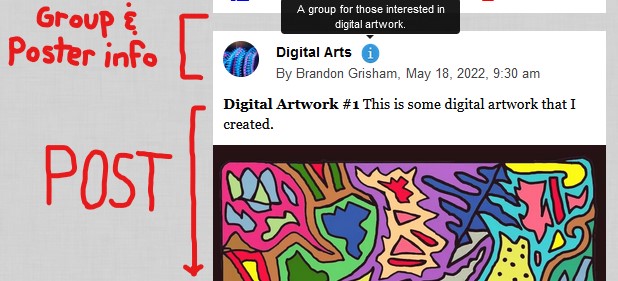
You can view the description of the group by clicking the information icon next to the name.
By clicking on the group name, you are taken to that group's specific feed. It will display ALL public group posts:
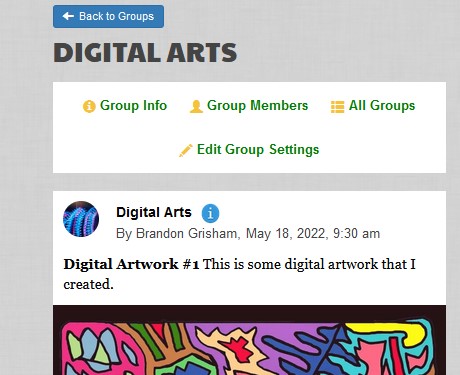
On the feed page, one can read more about the group, view the listed members (if it is public/you are a member), or browse other groups:
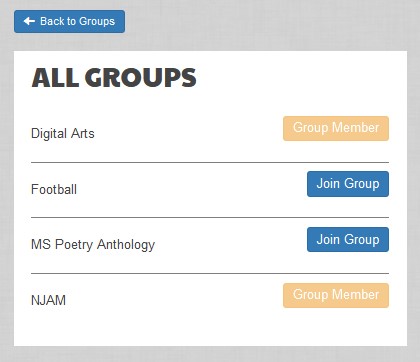
By browsing the other groups, users can either immediately join or request to join an existing group.
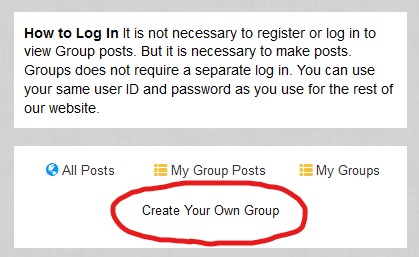
If there is not an existing group (for a topic that you would like to post about), simply create one by clicking the button on the main Groups page.
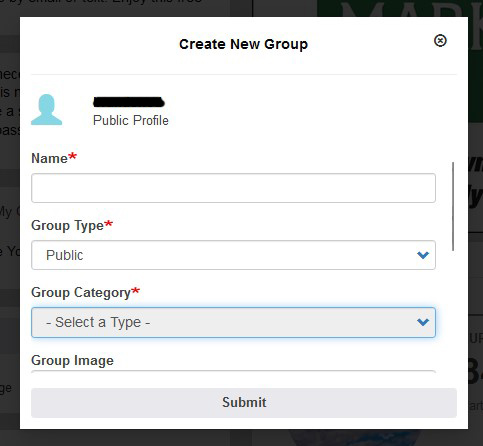
When creating a group, you have a variety of settings that you can set, such as the Name, the privacy type, the overall category, the Group image and the description.
User Posting : What is it?
Our News Posting feature allows readers to post content to our websites.
To start sharing content all that you need to do to is create an account (so that your work will have your name on it).
b. So what can I post?
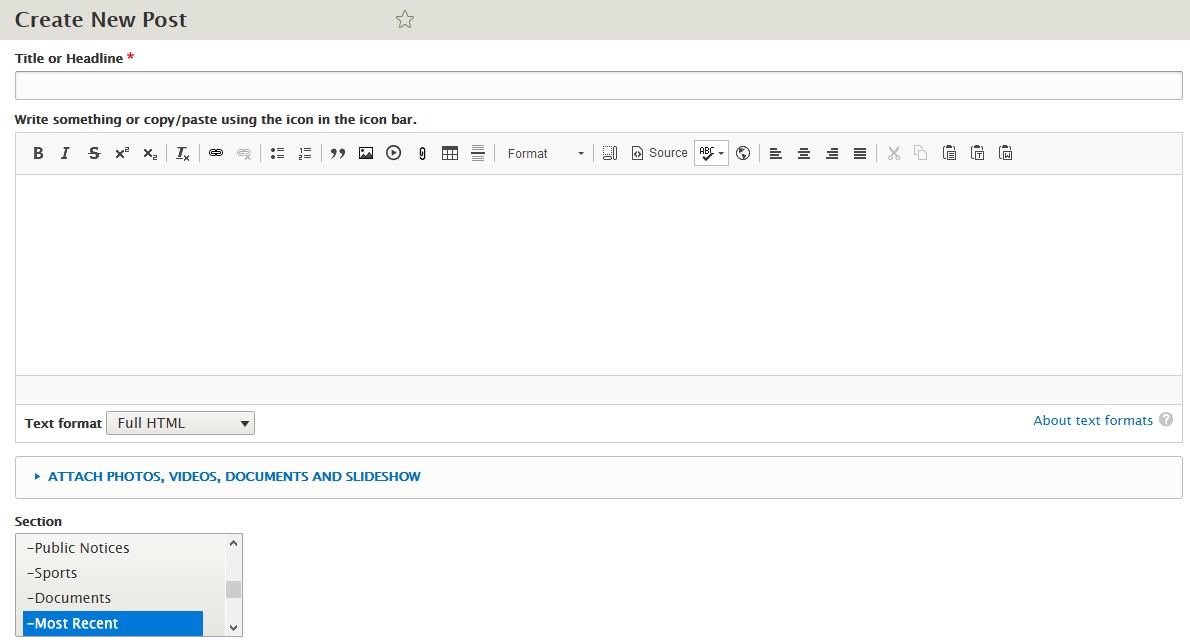
Readers can post text, documents, photos and videos.
Upon submission, your post will be sent to a member of our staff for review.
We review the post, and assuming it meets the minimum criteria standards, we make it live for everyone in the community to see.
We're willing to accept any and all forms of digital content. Don't feel any hesitation towards a potential submission. We may send comments to you regarding your content draft and possibly set a bonus amount to pay you for the post.
c. The Leaderboard

To make things interesting (and to spur up competition), we created a Leaderboard for all user posts.
This lets the community see all user content, easily sorted by read-counts, total number of posts, and even how much they earned by posting.
You would be surprised how much a popular story is worth (and it might even inspire you to generate some interesting articles/reader posts).
What is the Elections Section?
We wanted to allow for better coverage of local elections, so we created the ‘Elections’ section.
This functionality serves as our coverage of local elections, highlighting candidates across various electoral races. You can access the option by clicking on the ‘Elections’ tab on the menu.
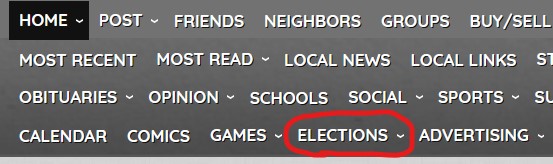
The main page links to an overall view for all local elections, displaying candidate pages and related news articles as a standard feed.
There are various buttons which would take you to a further-categorized page for a specific electoral race:
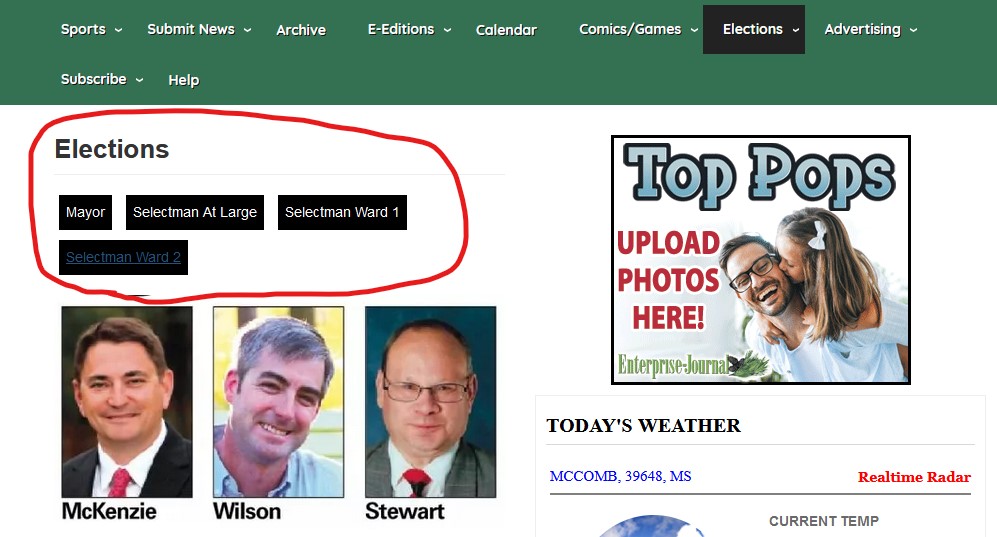
By clicking on an election button, you are taken to a new feed for THAT specific election (which lists all candidates for that electoral race).
The candidate page appears as a dedicated page, including various ‘COLUMNS’ of information:
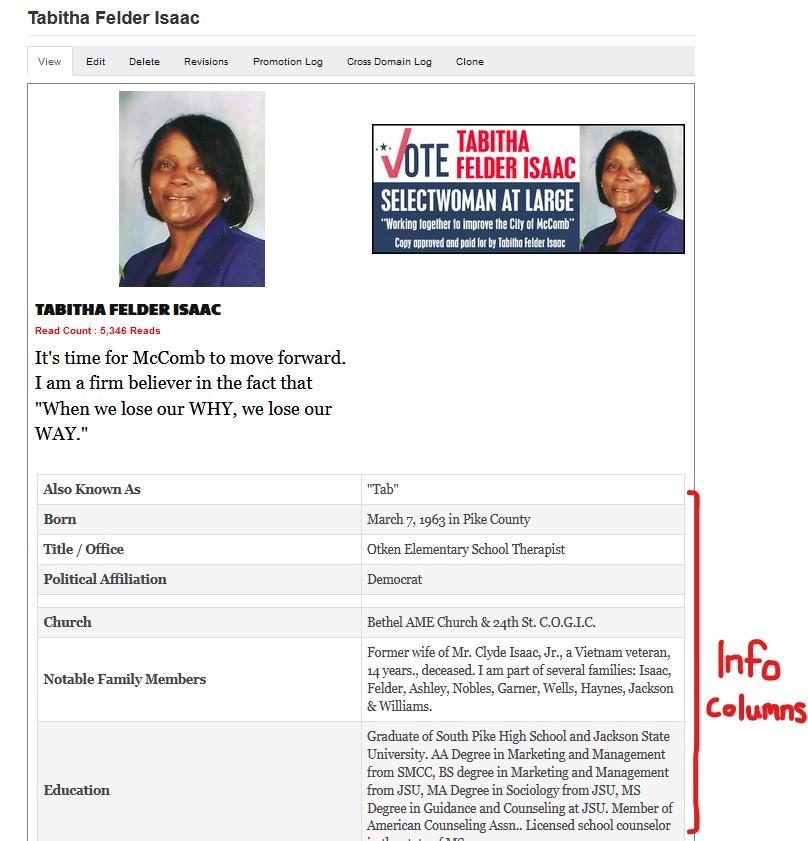
NOTE: Not all candidates running for a specific electoral race will appear under their corresponding election section. Candidates have to specifically request to be added to the list.
How can I run an Obituary (Online or in Print)?
In an effort to simplify the process of placing an obituary with our publication we created the ‘Obituary’ webform.
This functionality offers a simple process for scheduling an obituary (for the deceased) to run on our website (and in a future printed issue of our newspaper). You can access the option by clicking on the ‘Obituary’ tab on the menu.
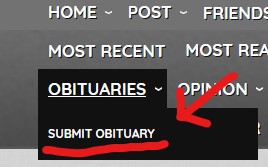
By clicking on the 'Submit Obituary' option you will be taken to the webform.
The first step is input the CONTACT information for the submitter of the obituary submission.
Each field is rather straightforward.
As a way to speed up the form, the fields will DEFAULT to whatever contact info is set up under the account (that you are logged-in as).
If you wish to change this information you are free to manually do so.
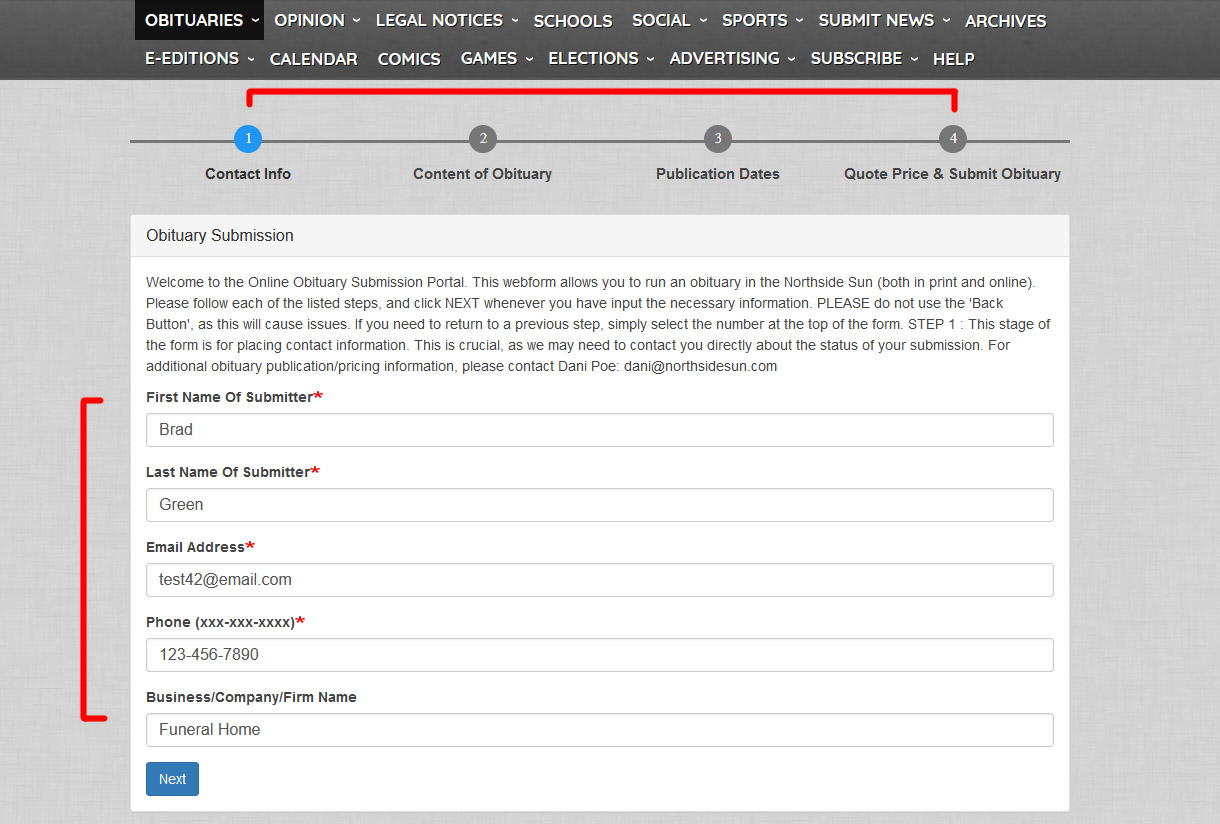
Ensure that you provide accurate contact information, as we may need to contact you about your obituary submission (if there are any issues, questions, etc).
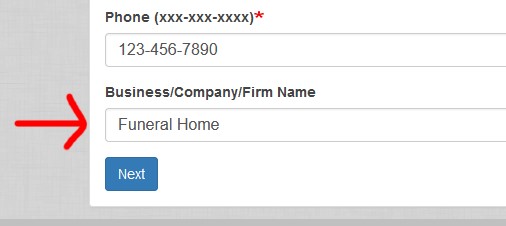
If you are a specific company (such as a funeral home) you may enter the information there. If not, you are free to ignore this field and click NEXT.
The next stage of the form is to input the CONTENT of the obituary submission.
This includes the NAME of the deceased and the CONTENT BODY of the submission.
The Headline of the obituary is what the article will appear as on the WEBSITE (and in Print/on your user dashboard). Please ensure that you make it distinct and clearly identifiable.
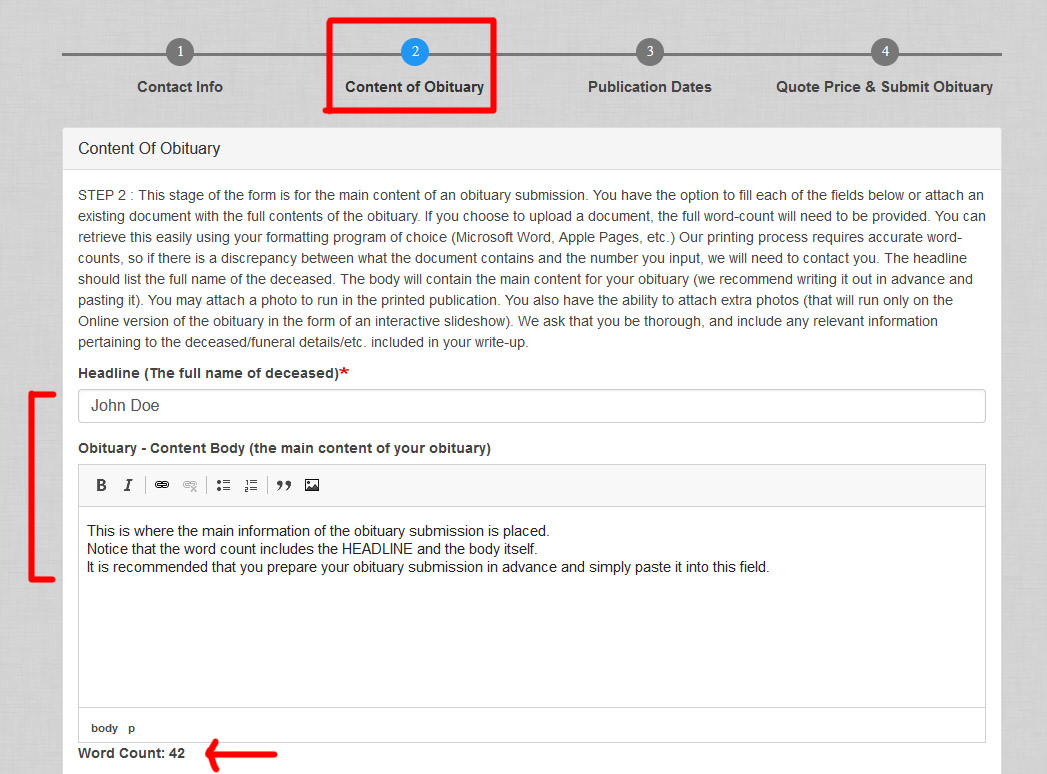
You will notice that your overall wordcount is totaled on this page, which will give you rough understanding of the length for your obituary submission.
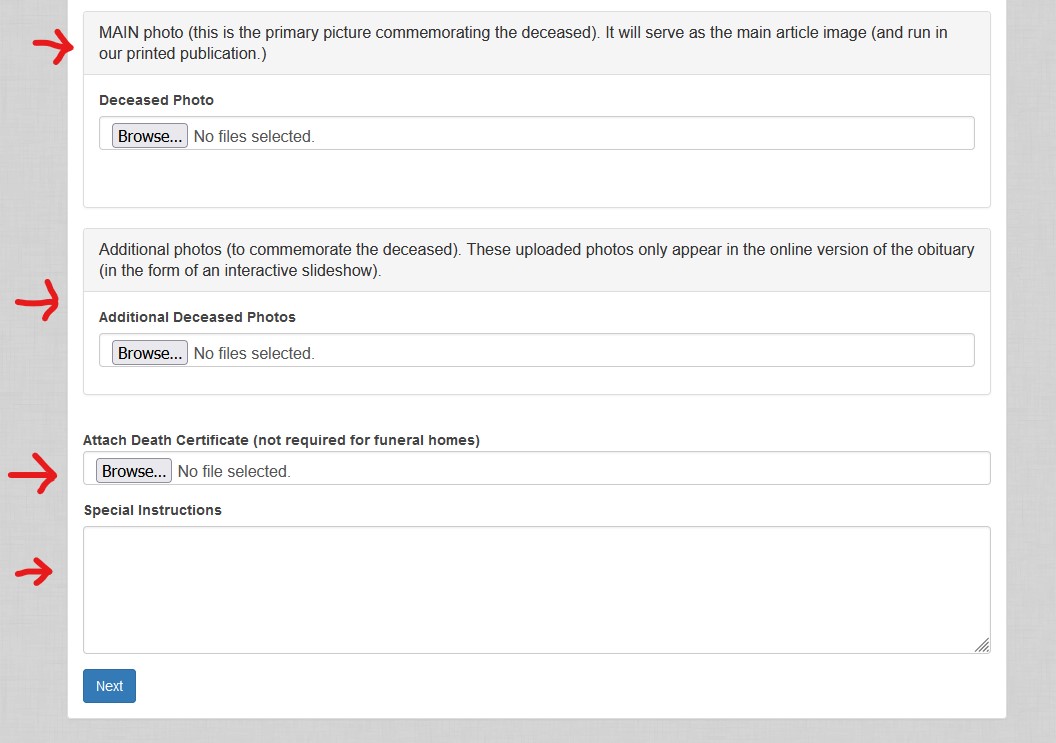
There will be several fields to upload images / documents.
The Main Photo field is to attach an image of the deceased that you aim to run in print / serve as the first photo.
The Additional Photos field allows you to add extra photos that will run in a slideshow on the online-version of the obituary.
There is also a death Certificate field, which will serve a confirmation method for us to run your obituary.
Some funeral homes have a prepared PDF of a obituary submission.
We have an alternative option to the 'pasting' method shown above, which will allow for PDF attachments:
You need to input the exact wordcount for your obituary submission if you use this 'UPLOAD' method. It will determine your cost.
If there are discrepancies between the length of whatever is uploaded and what is set for this total we will contact you directly.
By clicking on NEXT you move forward to select the dates for the obituary submission to run (both online and in print).
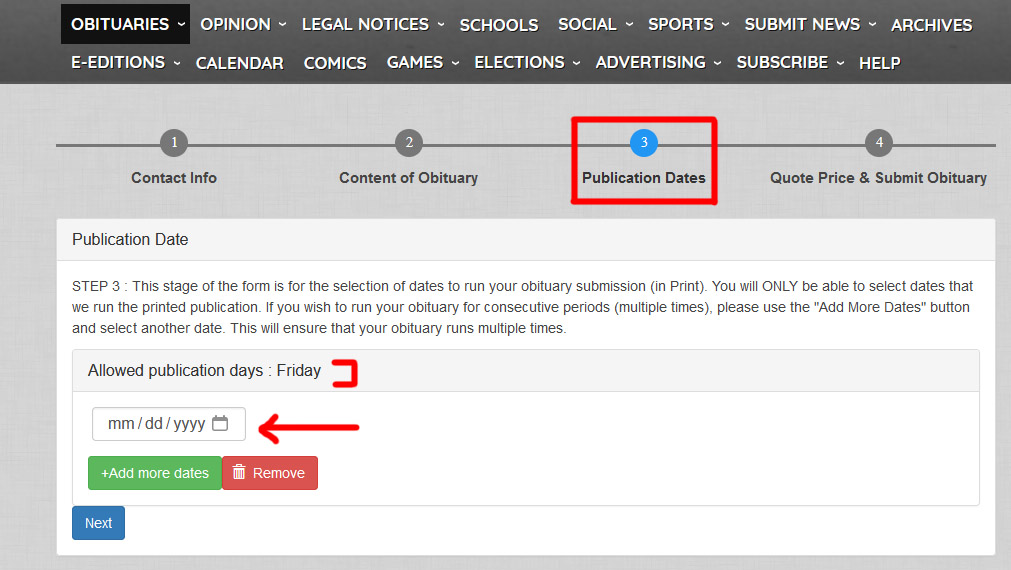
You will notice that the 'Allowed Publication Days' matches whatever dates the printed newspaper goes live each week. When you select your date(s) to run, please always follow this request. The form will NOT allow you to continue if you select an incorrect date.
NOTE: The dates you can select will be different from the example above (as each publication has a specific publication day)
If you wish to have SUBSEQUENT runs for an obituary (have the article run for several weeks in print), simply select the 'Add More Dates' option.
By clicking on the small calendar icon you can see a full calendar view for date selection:
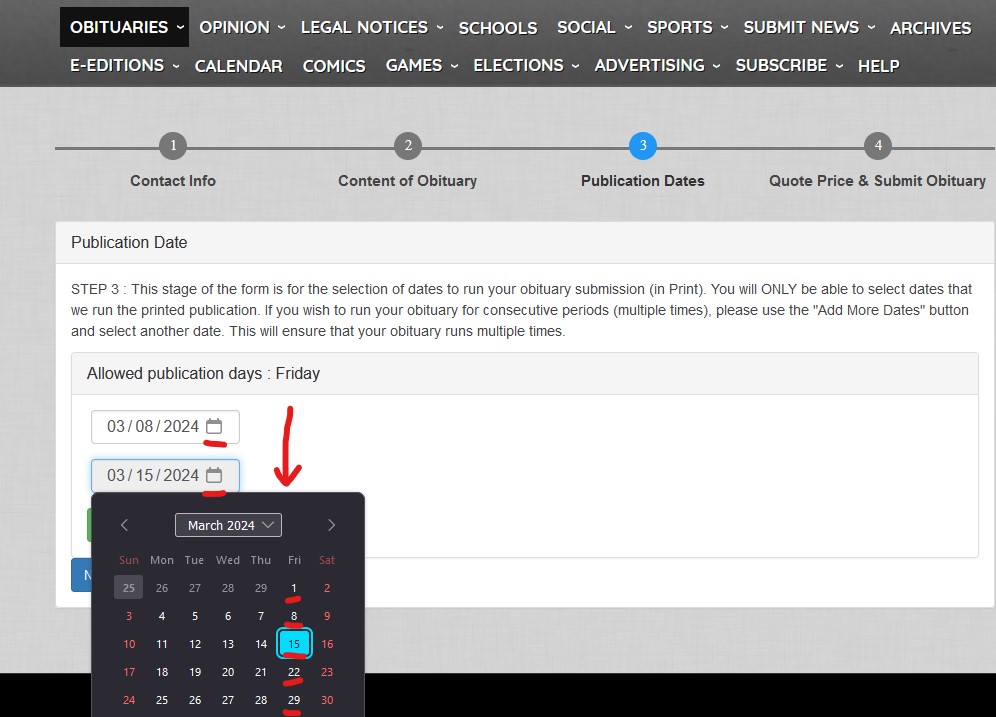
Simply select however many dates you wish for the obituary to run.
NOTE: The dates you can select will be different from the example above (as each publication has a specific publication day)
Clicking NEXT will take you to the final step for the form, which will give you a quoted price for your submission:
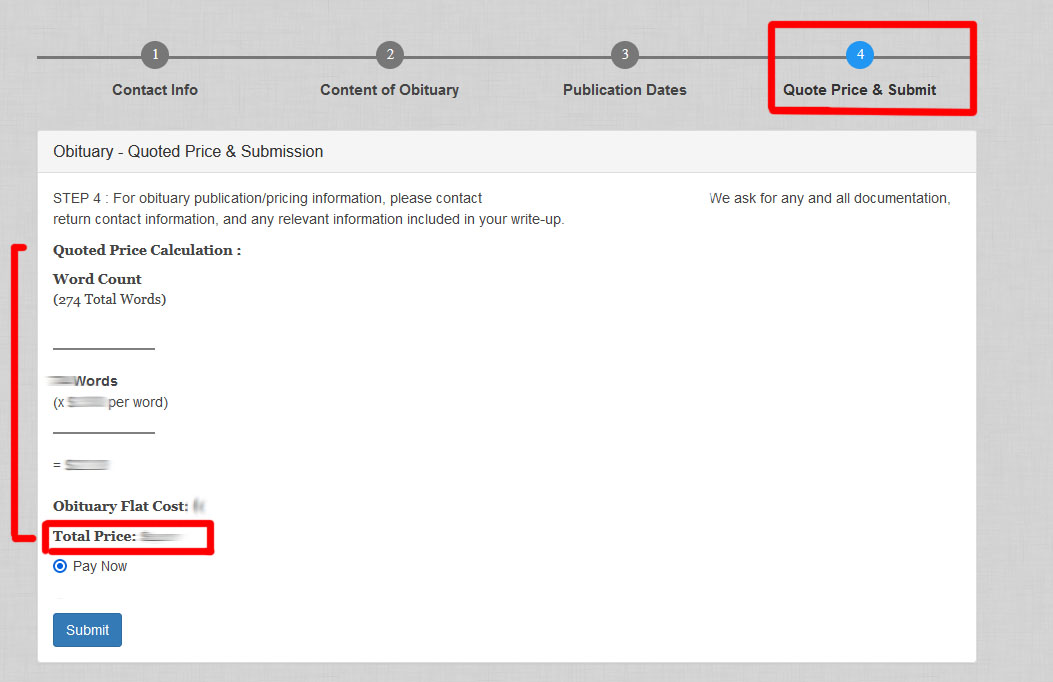
As you can see, there will be a breakdown for the cost (first insertion for the initial date, subsequent dates run, photo attachments, etc).
The total cost will be summed at the bottom.
NOTE: The example above may not represent what you will see (as you may have attached other options & each publication has unique prices).
Selecting 'SUBMIT' will place the advertisement into your account's CART.
You then simply proceed to purchase the advertisement using our cart system (works the same as purchasing a subscription).
If your account already has a saved payment method it can be used to save time for your purchase.
Upon purchase of a obituary submission, various elements are triggered:
- A receipt will be sent to your email address for the purchase
- We will be informed of your purchase and our print calendar will be updated to include your submission
- The ONLINE version of your obituary is scheduled to run on the same day as the initial print run date
- Your user account dashboard will now link to your Obituary purchase(s):
You can view a purchase on your User Dashboard here:
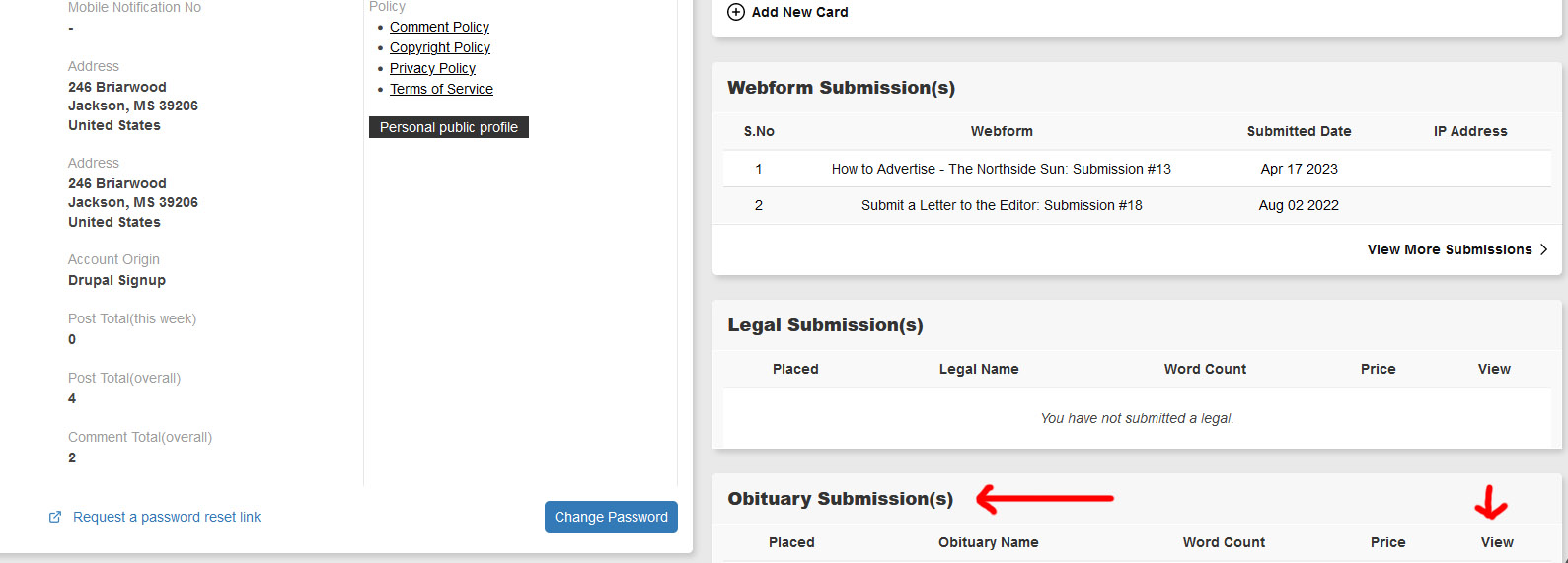
The obituary will appear, alongside various details and a 'VIEW MORE' option:

Clicking on this option will give you a COMPLETE breakdown for your submission.

Once the date of your obituary run arrives, the ONLINE version of your submission will go live on the website:
NOTE: If you have ANY questions about this process, please do not hesitate to contact us directly.
We are happy to work with you to ensure that your obituary runs correctly.
How can I purchase a Legal Ad (for Online and Print)?
In an effort to simplify the process of running a Legal advertisement with our publication we created the ‘Legal’ webform.
This functionality offers a simple process for scheduling a legal ad to run on both our website and in a future printed issue of our newspaper. You can access the option by clicking on the ‘Legals’ tab on the menu.
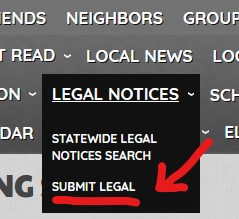
By clicking on the 'Submit Legal' option you will be taken to the webform.
The first step is input the CONTACT information for the submitter of the legal advertisement.
Each field is rather straightforward.
As a way to speed up the form, the fields will DEFAULT to whatever contact info is set up under the account (that you are logged-in as).
If you wish to change this information you are free to manually do so.
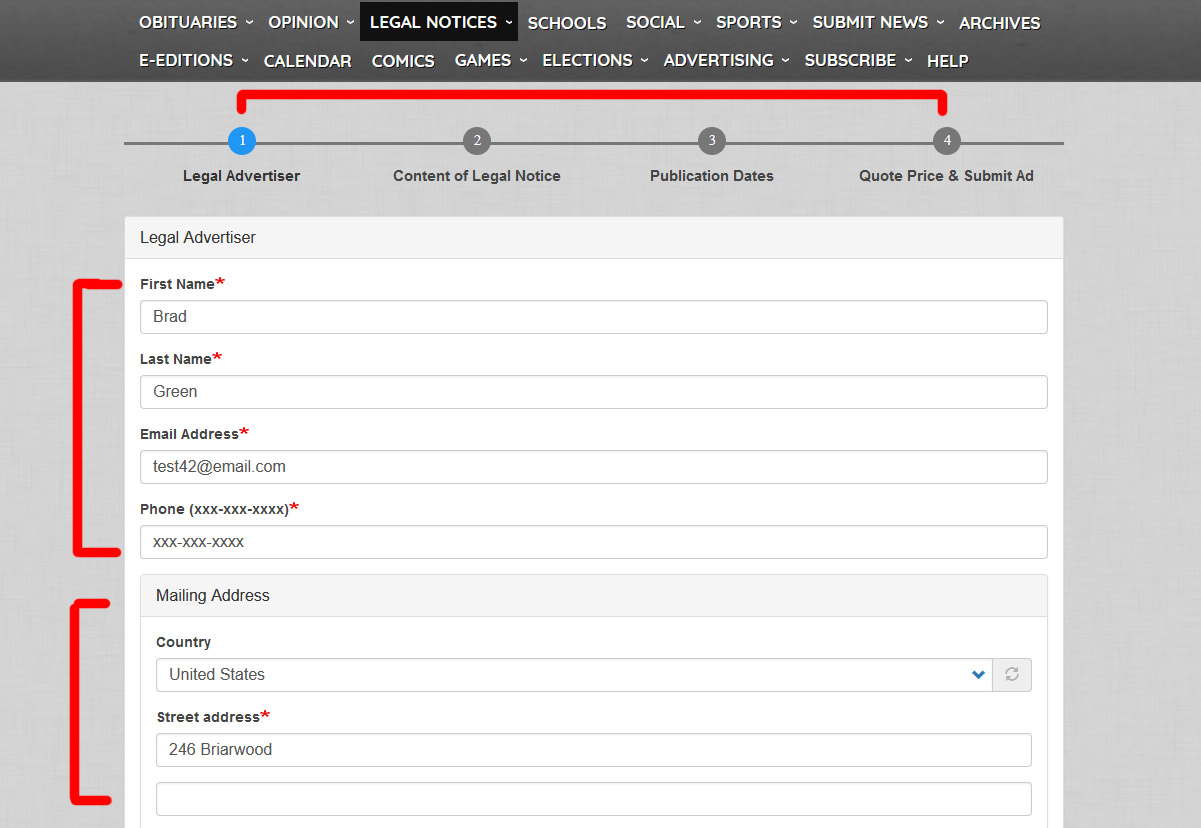
Ensure that you provide accurate contact information, as we may need to contact you about your legal ad run (if there are any issues, questions, etc). The MAILING ADDRESS is used to send the advertiser a mailed Proof of Publication, which is a state-mandated requirement.
If you are a specific firm you may enter the information there. If not, you are free to ignore this field and click NEXT.

The next stage of the form is to input the CONTENT of the legal notice.
This includes the NAME of the advertisement and the BODY.
The Name of the notice is what the notice will appear as on the WEBSITE (and in Print/on your user dashboard). Please ensure that you make it distinct and clearly identifiable.
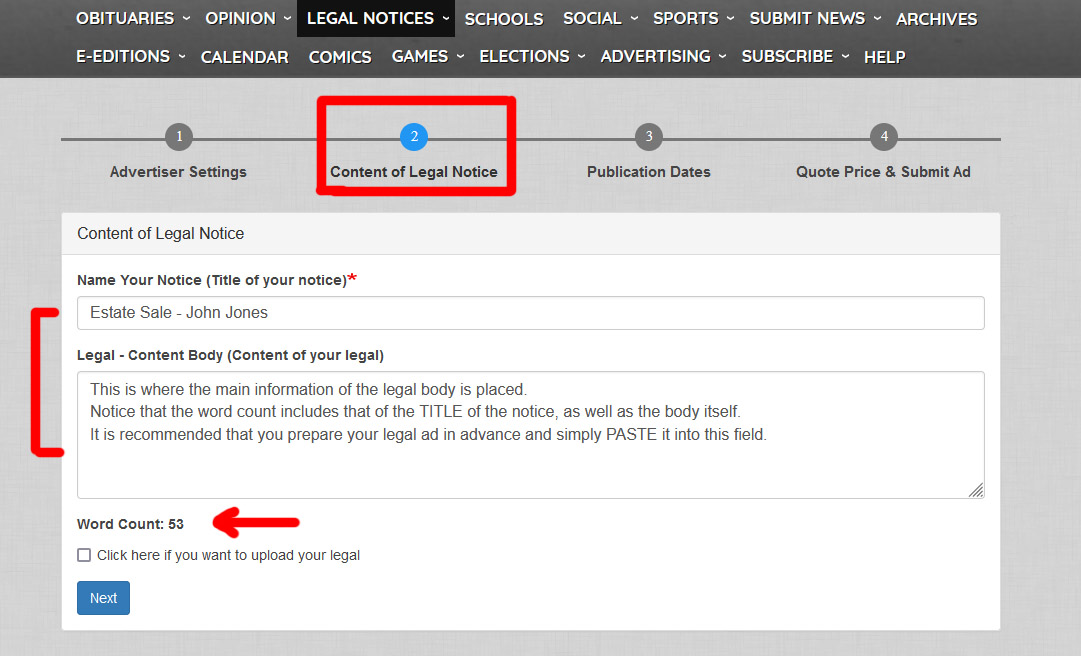
You will notice that your overall wordcount is totaled on this page, which will give you rough understanding of the length for your legal ad.
Some firms have a prepared PDF of a legal advertisement.
We have an alternative option to the 'pasting' method shown above, which will allow for PDF attachments:
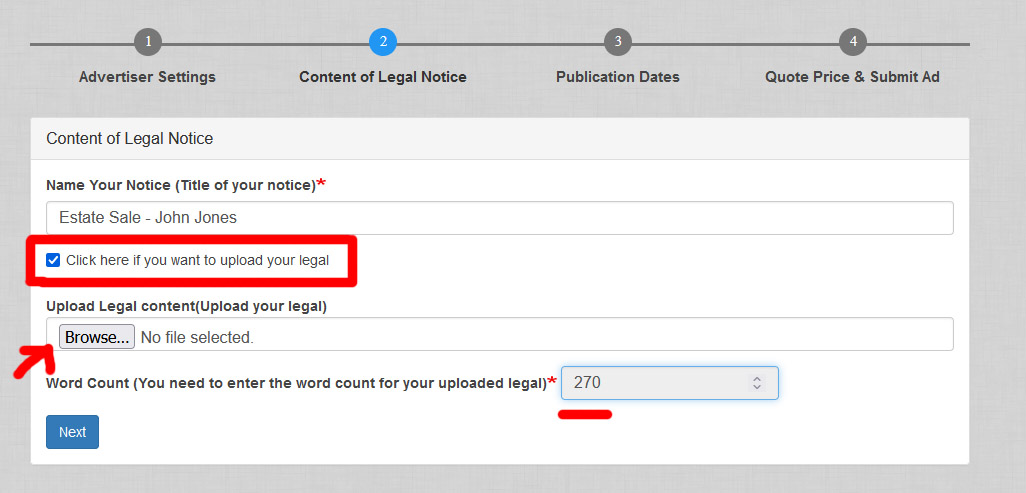
You need to input the exact wordcount for your legal advertisement if you use this 'UPLOAD' method. It will determine your cost.
NOTE: Please be accurate with your uploaded file's wordcount.
If there are any discrepancies between the length of whatever is uploaded and what you set for this total we will contact you directly to resolve this before we can process your submission.
By clicking on NEXT you move forward to select the dates for the legal advertisement to run (both online and in print).
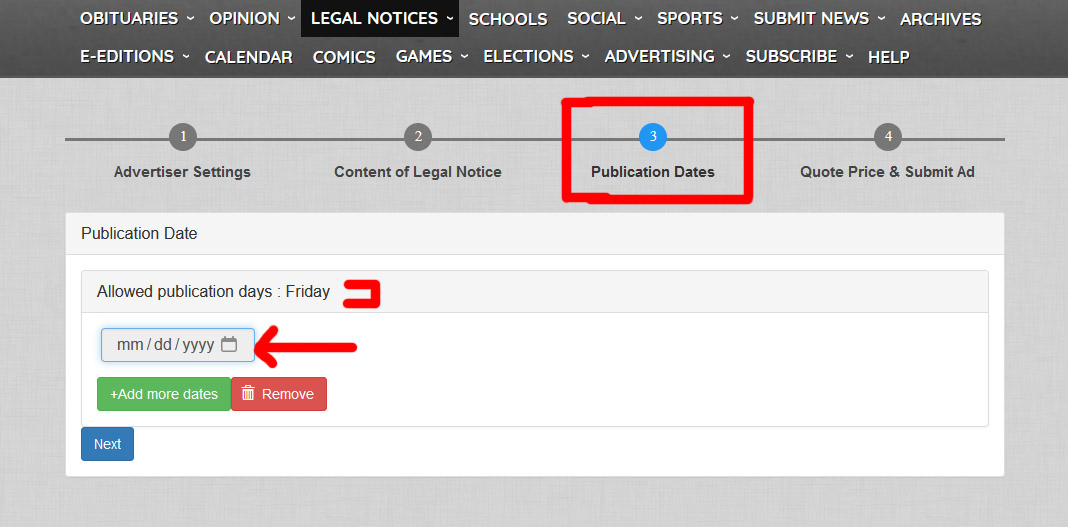
You will notice that the 'Allowed Publication Days' matches whatever dates the printed newspaper goes live each week. When you select your date(s) to run, please always follow this request. The form will NOT allow you to continue if you select an incorrect date.
NOTE: The dates you can select will be different from the example above (as each publication has a specific publication day)
If you wish to have SUBSEQUENT runs for an advertisement (have the ad run for several weeks), simply select the 'Add More Dates' option.
By clicking on the small calendar icon you can see a full calendar view for date selection:
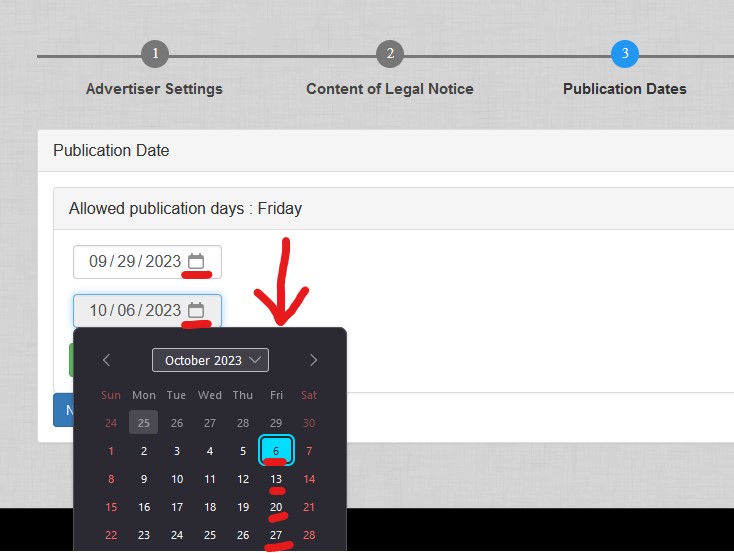
Simply select however many dates you wish for the advertisement to run.
NOTE: The dates you can select will be different from the example above (as each publication has a specific publication day)
Clicking NEXT will take you to the final step for the form, which will give you a quoted price for your submission:
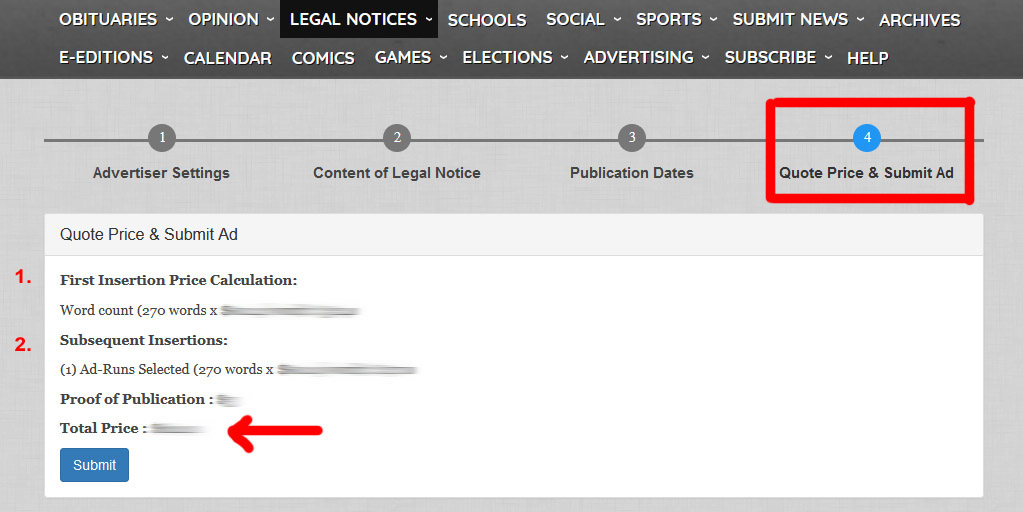
As you can see, there will be a breakdown for the cost (first insertion for the initial date, subsequent dates run, and the State-mandated cost for Publication proofs). The total cost will be summed.
NOTE: The example above may not represent what you will see (as you may have attached other options & each publication has unique prices).
Selecting 'SUBMIT' will place the advertisement into your account's CART.
You then simply proceed to purchase the advertisement using our cart system (works the same as purchasing a subscription).
If your account already has a saved payment method it can be used to save time for your purchase.
Upon purchase of a legal advertisement, various elements are triggered:
- A receipt will be sent to your email address for the purchase
- We will be informed of your purchase and our print calendar will be updated to include your advertisement
- The ONLINE version of your legal is scheduled to run on the same day as the initial print run date
- Your user account dashboard will now link to your Legal Notice purchase(s):
You can view a purchase on your User Dashboard here:

The Legal Submission will appear, alongside various details and a 'VIEW MORE' option:

Clicking on this option will give you a COMPLETE breakdown for your submission.
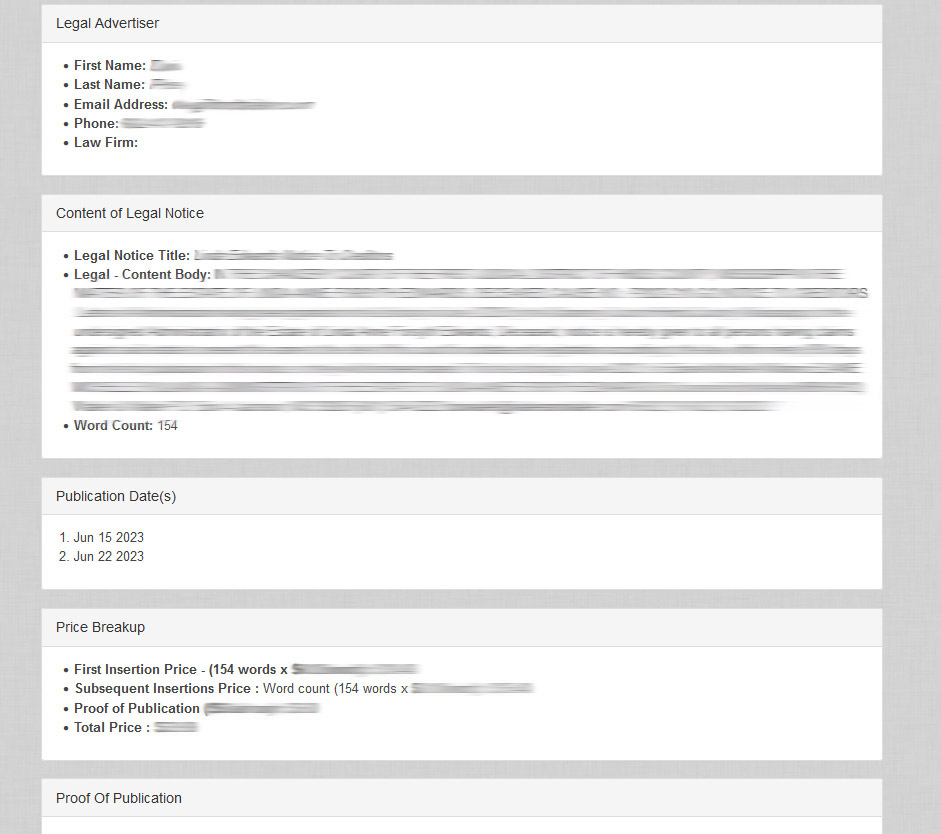
Once the Proof of Publication is complete it will also be available on this page (alongside it being mailed to the mailing address on file).
You will receive an email if a Publication Proof is uploaded.
Once the date of your legal run arrives, the ONLINE version of your legal notice will go live on the website:

NOTE: If you have ANY questions about this process, please do not hesitate to contact us directly. We are happy to work with you to ensure that your legal advertisement runs correctly.

- 9537 views